The Raspberry Pi is a family of low-cost, single-board computers developed by the Raspberry Pi Foundation in the U.K. Since its introduction in 2012, it has emerged as a widely-used platform for embedded system research and project hobbyists. Most users use some form of the Linux operating system on the Raspberry Pi; equipped with several USB ports, quad-core processor, an IEEE 802.3/Ethernet port, IEEE 802.11 WiFi and Bluetooth capability, HDMI connector, audio output, and a general-purpose input/output (GPIO) bus, it is a very powerful tool for research, exploration, teaching, and learning.
There are many documents on the Internet that describe various aspects of using a Raspberry Pi to create a marine Automatic Identification System (AIS) display. While I don't want to repeat all of those sites — and, hopefully, I won't — I wanted to put everything into one place, particularly for other AIS researchers who are looking for a push up the learning curve. I hope that this page accomplishes that goal.
For purposes of this paper, I am assuming that readers understand the fundamentals of AIS. To get a lot more information, check out the USCG Navigation Center's Automatic Identification System Overview, IALA's An Overview of AIS (Edition 2), or the automatic identification system (AIS) article at Wikipedia.
For your viewing pleasure, see my Build A Raspberry AIS talk from Hack The Sea 2.0 at DEF CON 28 (2020).
Also, check out the following blog postings by my friend and colleague, Rae Baker: Creating an AIS Pi for Maritime Research and How to Install OpenCPN on Your AIS Raspberry Pi for Maritime Research.
Table of Contents
Unless specifically noted otherwise, no endorsement of hardware, software, or other items is intended in the discussion below.
Hardware
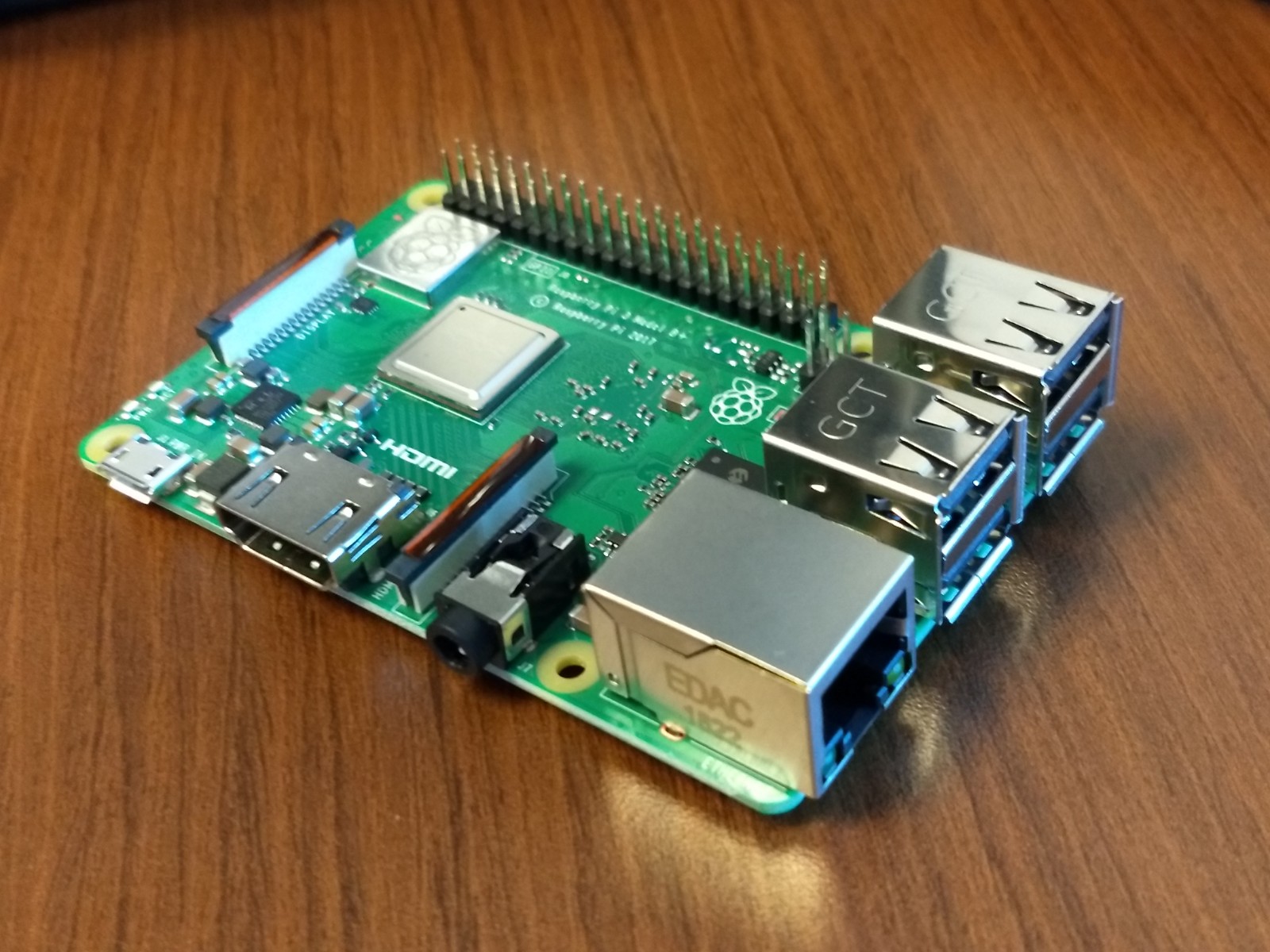
Raspberry Pi: Essential hardware, obviously, since this is the title of the paper! There are many sources and I leave that to the reader. Be sure to get the latest version of the hardware. (The information on this page has been tested, and is running, on a Raspberry Pi 3 Model B+ because that's what I have! Everything should still work on the current version of the hardware, the Raspberry Pi 5.)
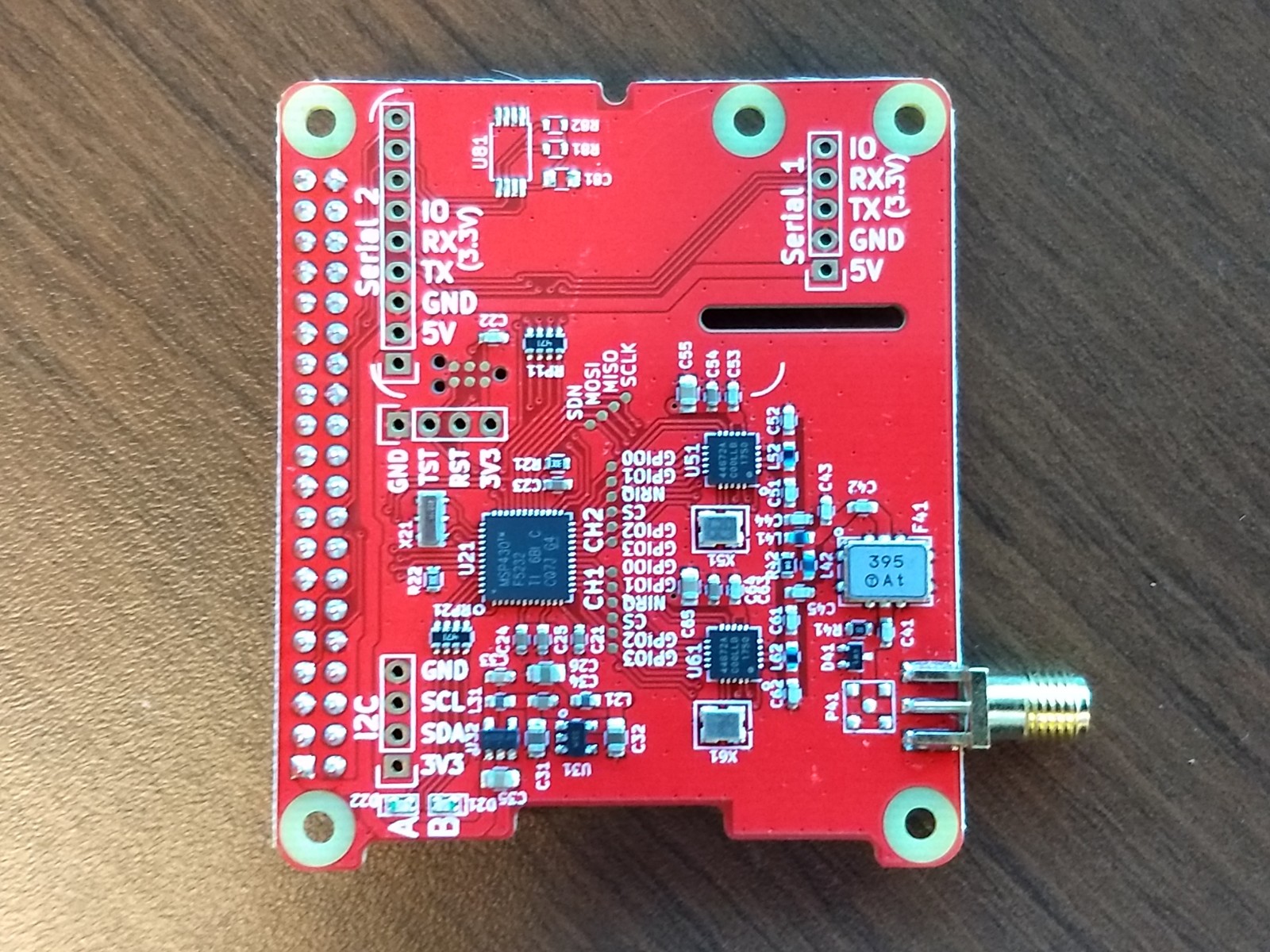
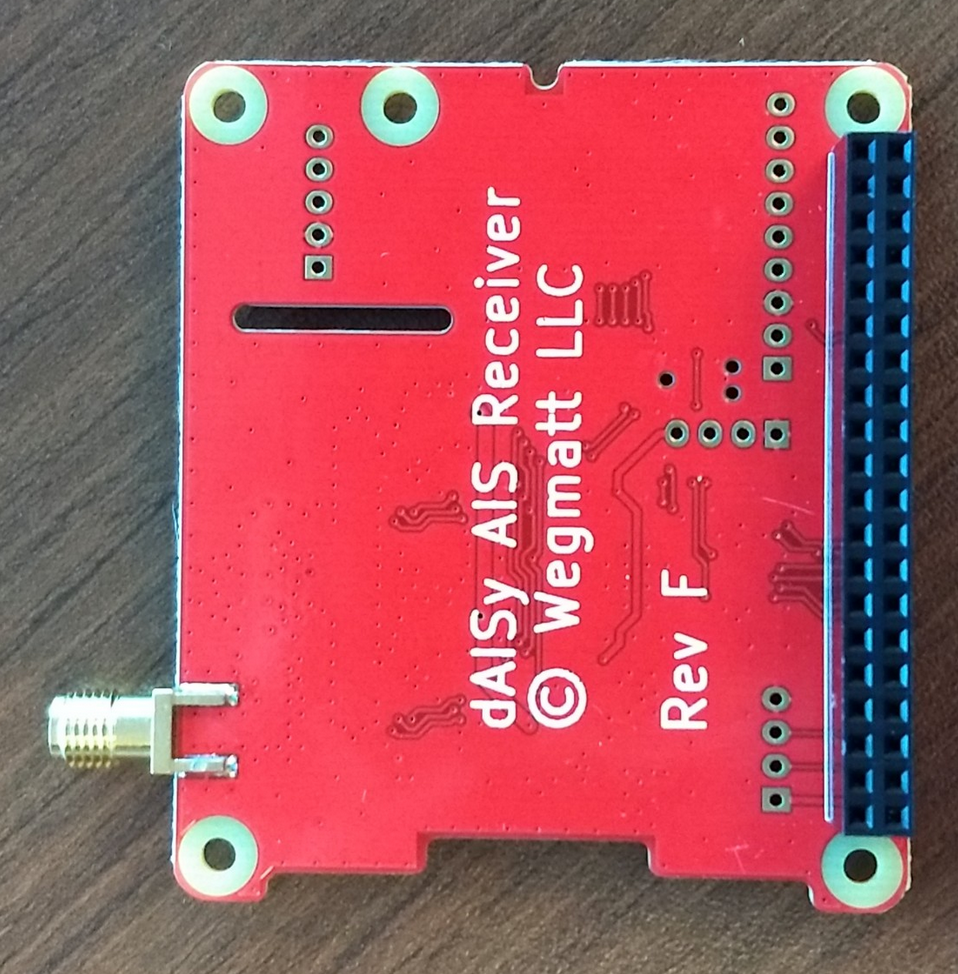
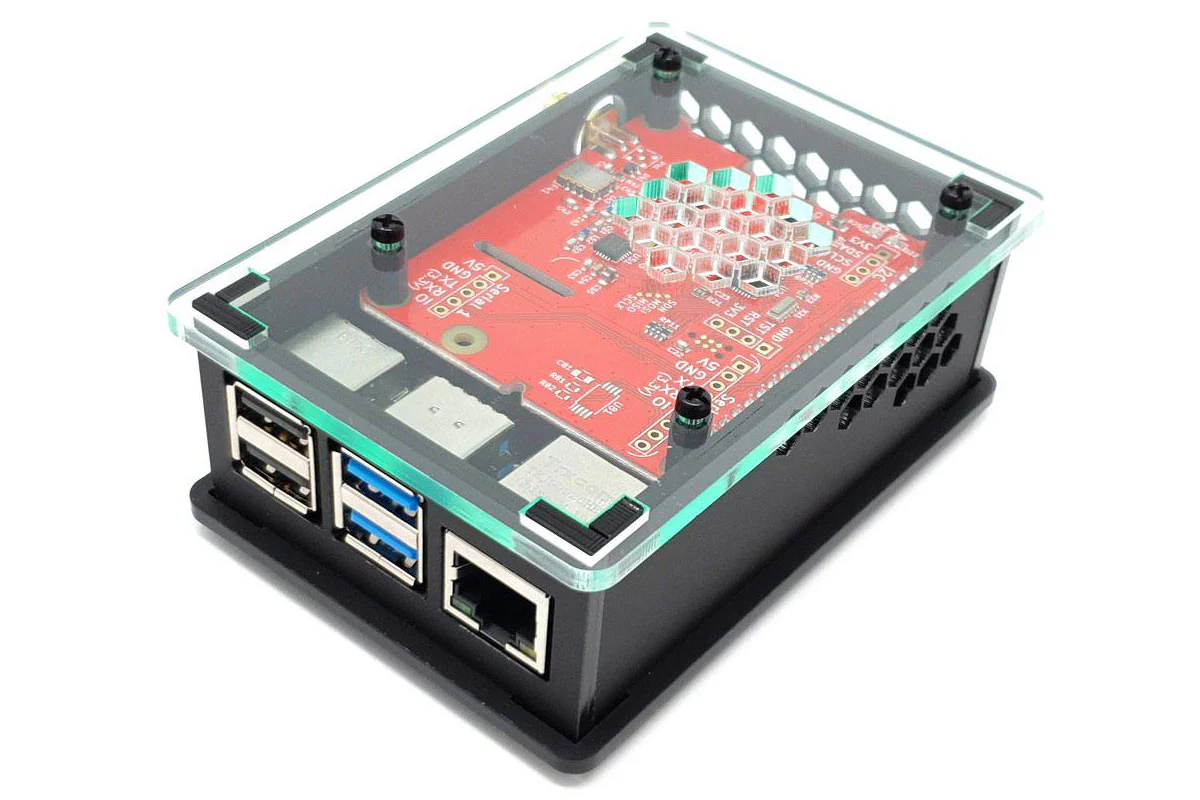
dAISy HAT AIS Receiver: If you're project involves receiving live, over-the-air AIS data,, you will need some type of AIS receiver. There are a number of options; one way is to get an external receiver and connect it to the Raspberry Pi's USB port. My suggestion is the dAISy HAT (Hardware Attached on Top) 2-channel AIS receiver, a daughterboard for the Raspberry Pi. Designed by Wegmatt, the primary source is Tindie.
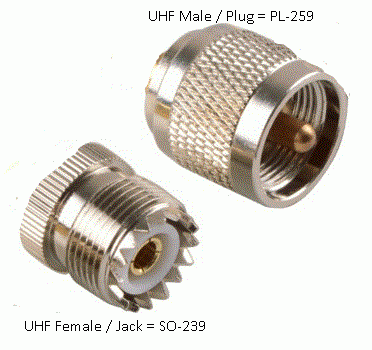
- NOTE: If you use an antenna for your dAISy HAT, note the terminating connector. If it comes with a male BNC plug, it should attach directly to the dAISy HAT's female BNC jack. If it comes with a coaxial cable, it most likely terminates with a male PL-259/SO-239 plug, thus, you will need an adapter. I would recommend getting the SO-239 pigtail or BNC-to-SO-239 adapter when you buy the dAISy HAT.
- A note on antenna connector nomenclature: According to most sources that I can find, references to SO-239 and PL-259 are mated connector pairs for coaxial cable terminations. In general, the SO-239 (aka UHF Female, UHF Jack, or UHF Socket) is the connector on a radio or chassis and the PL-259 (aka UHF Male or UHF Plug) is the connector on a cable. You may also find a "male SO-239" or a "female PL-259" product listings. Be sure to look at the pictures!
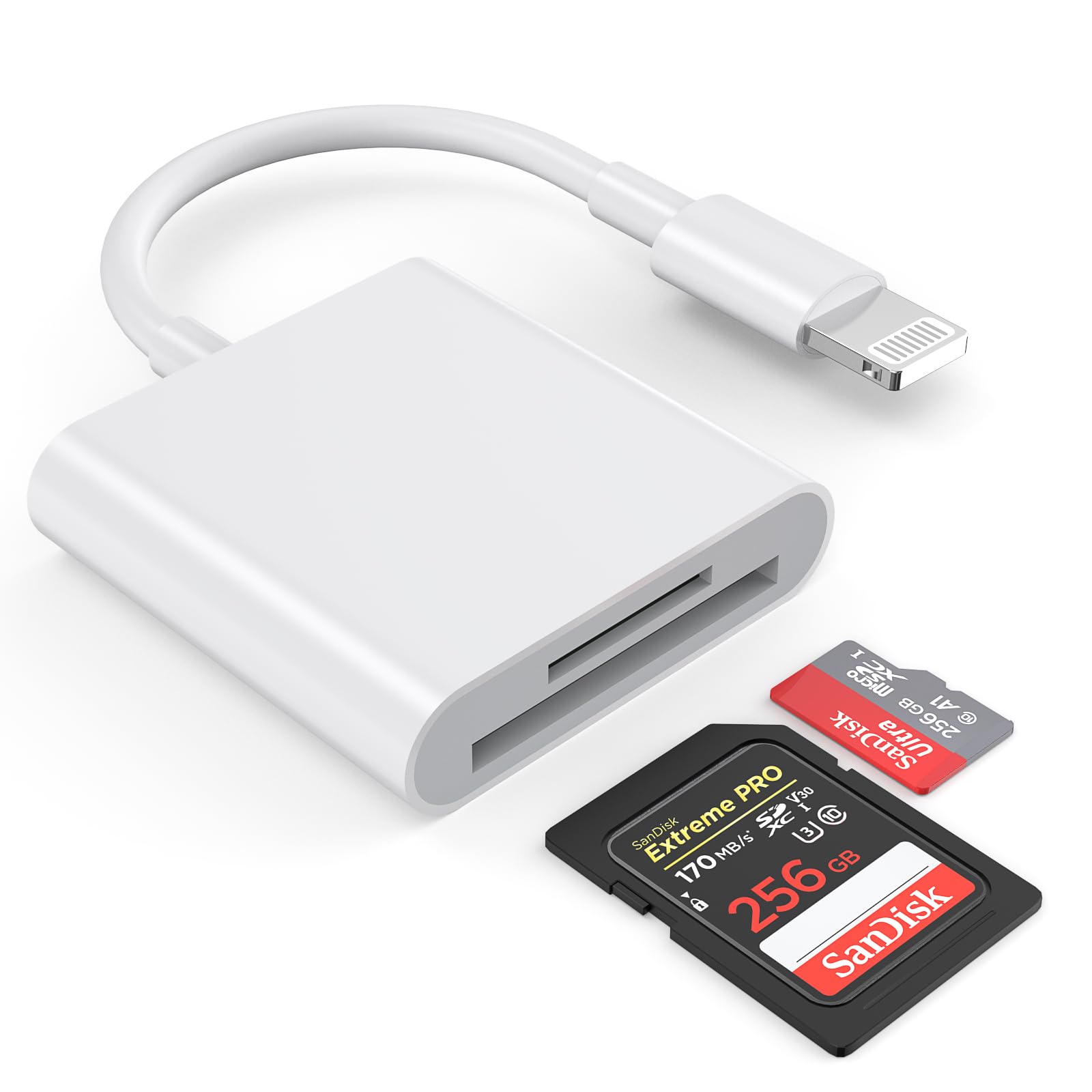
µSD card: The operating system, all files, and on-board storage for the Raspberry Pi reside on a single microSD card. Ideally, get a card with a capacity of 32 GB or 64 GB. Most microSD cards come with an adapter so that they can fit into a computer's SD card slot. If you don't have such a card slot, you might also need to obtain a USB µSD/SD reader, such as the one shown below.
Case (optional): Although it is not absolutely necessary to have a case, I would recommend getting the case that comes with the dAISy HAT in order to protect all of the components when everything is in use.
Other hardware (optional): In order to initially configure the Raspberry Pi, you might also want to have on hand an HDMI-capable monitor, an HDMI cable, and a wireless/USB keyboard and mouse. You should also have an Ethernet cable and router for a network connection or an open WiFi network.
Antenna (optional): You will need an antenna if you wish to pick up AIS signals from the outside. AIS uses two VHF maritime frequencies, 161.975 MHz (VHF channel 87B/2087, aka AIS1) and 162.025 MHz (VHF channel 88B/2088, aka AIS2). Any antenna that can work in these frequencies — or is labelled "VHF marine antenna" — ought to work fine for AIS projects. As noted above, be sure to check out the antenna cable connector. [As an aside, satellite-AIS (S-AIS) uses VHF frequencies 156.775 MHz (AIS3) and 156.825 MHz (AIS4).]
Installing Raspberry Pi OS
Before going any further, I would like you to be aware of an entirely different direction you can take. AISHub offers AIS Dispatcher for the Raspberry Pi. Depending upon what you're trying to do, AIS Dispatcher might be worth looking into.
You can also use a preinstalled image that includes Raspberry Pi OS and OpenCPN, saving yourself several of the next steps:
- OpenPlotter (https://openmarine.net/openplotter) provides a preinstalled image of Raspberry Pi OS, SignalK Server and OpenCPN
- BBN Marine OS (https://bareboat-necessities.wixsite.com/my-bareboat) provides a preinstalled image of Raspberry Pi OS, OpenCPN, and many other utilities
There are several lightweight Linux (and other) operating systems that can run on the Raspberry Pi. The native OS is Raspberry Pi OS (née Raspbian), a variant of Debian. The best source for all of these is the Raspberry Pi Foundation's Software page, and follow the instructions.
- Download and install the Raspberry Pi Imager V2.0.
- Attach a microSD card to your computer.
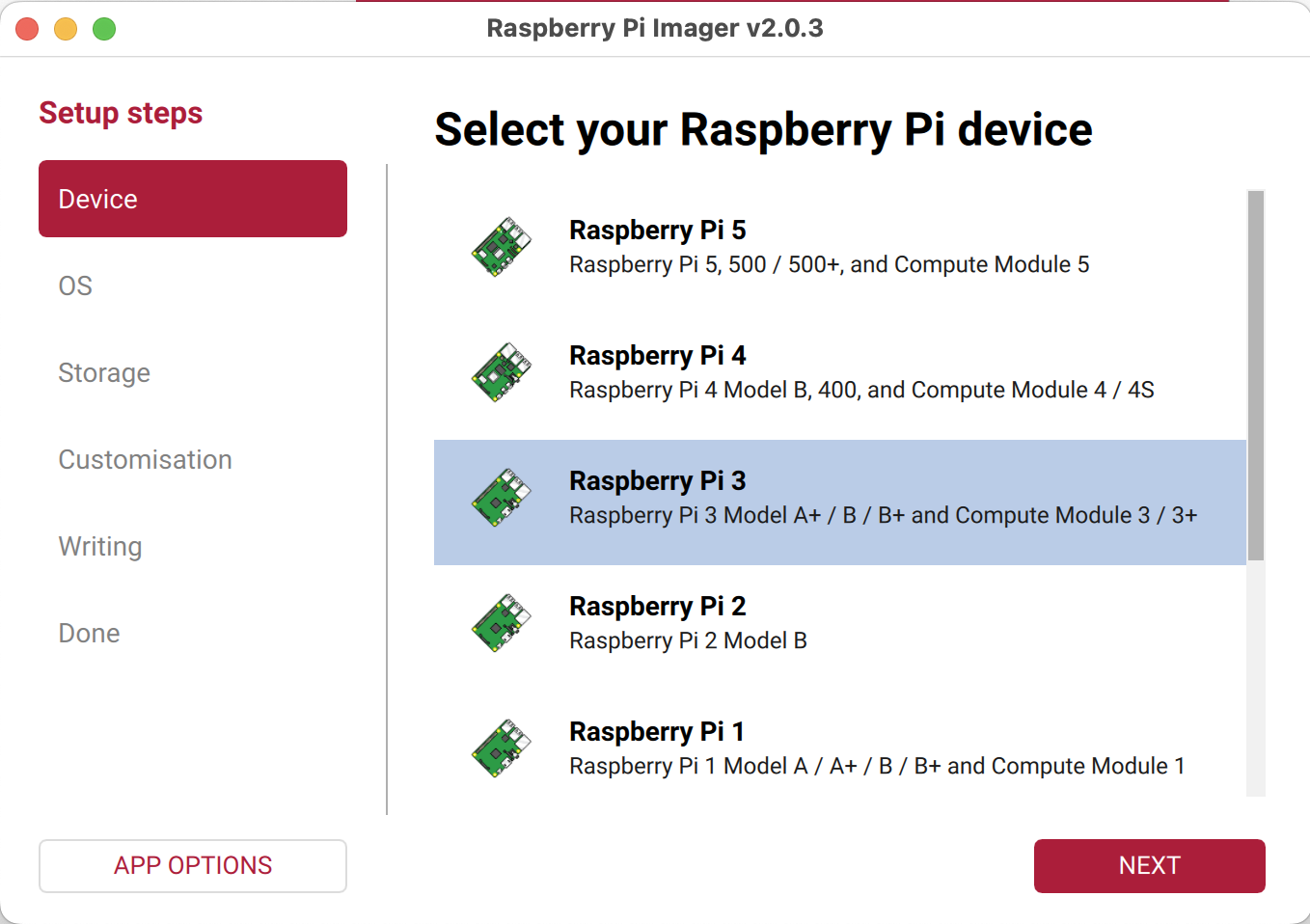
- Start the Raspberry Pi Imager application, select your hardware, and click NEXT.
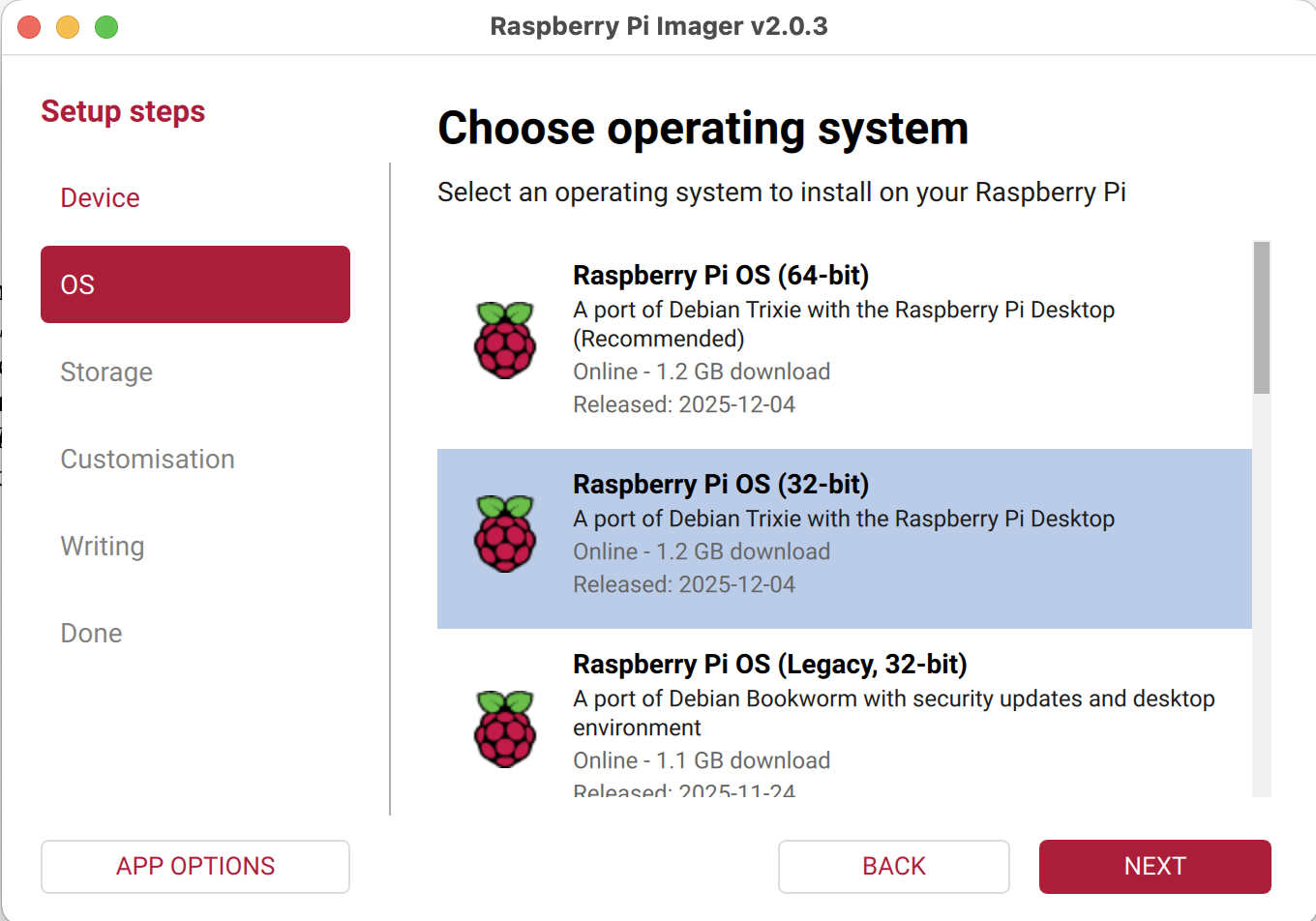
- Select your operating system and click NEXT; you probably want 64-bit version of Raspberry Pi OS if using newer hardware (I chose 32-bit for my Raspberry Pi 3).
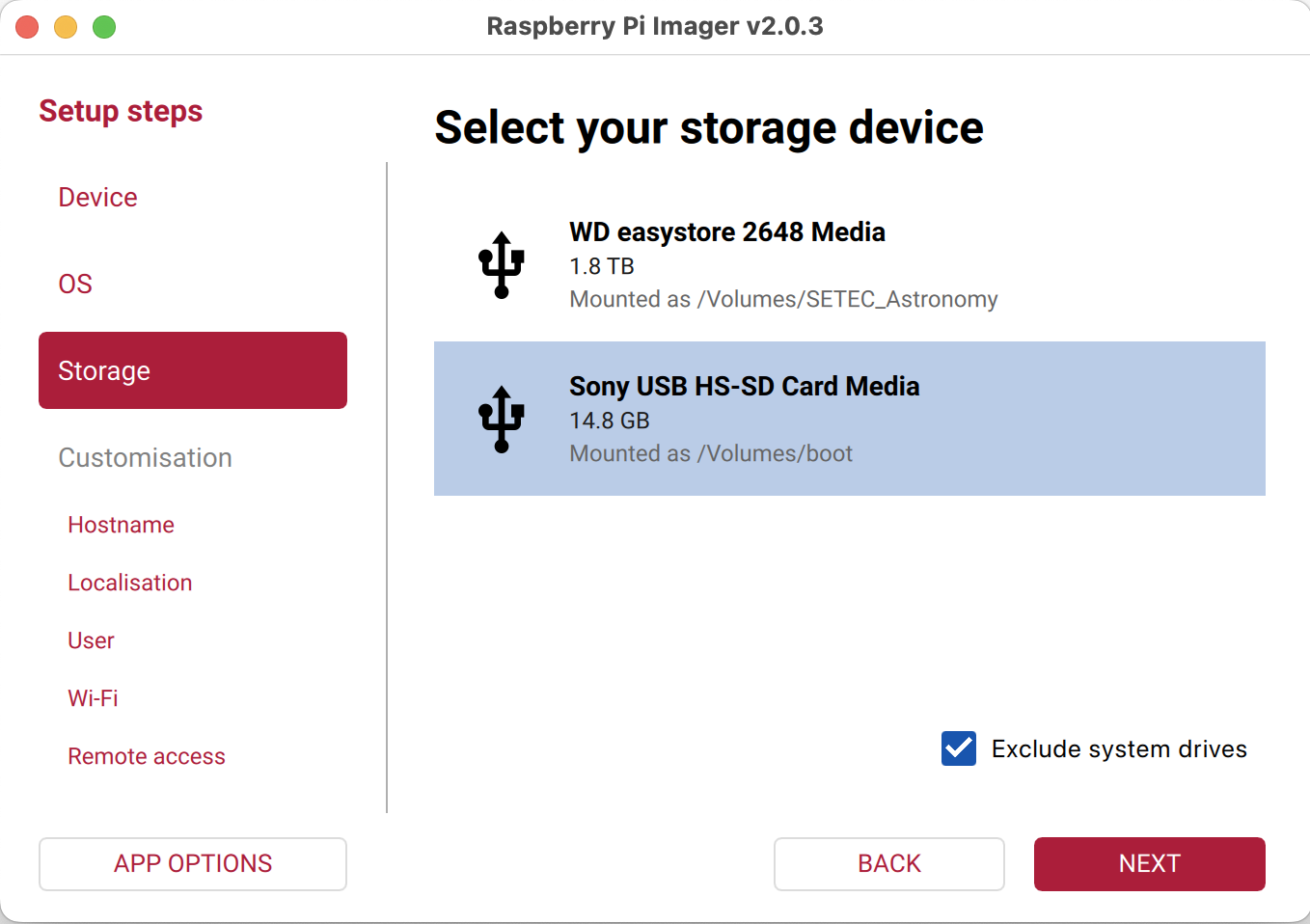
- Select the device to image, which should be your microSD card. Be sure not to write to you hard drive or backup drive! The application will ask several follow-up qestions to ensure that you selected proper destination after you click NEXT.
- (Optional but highly recommended) The next section allows you to customize OS installation now instead of waiting until you've booted the Raspberry Pi for the first time. The major advantage to doing it now is that you can boot the Raspberry Pi in headless mode, and immediately login using the Secure Shell (SSH) protocol and finish any confguration without having to attach a keyboard, mouse, and monitor. At this point, set the hostname, enable SSH, set the username and password, enable WiFi (be sure to properly set the country), and set locale information.
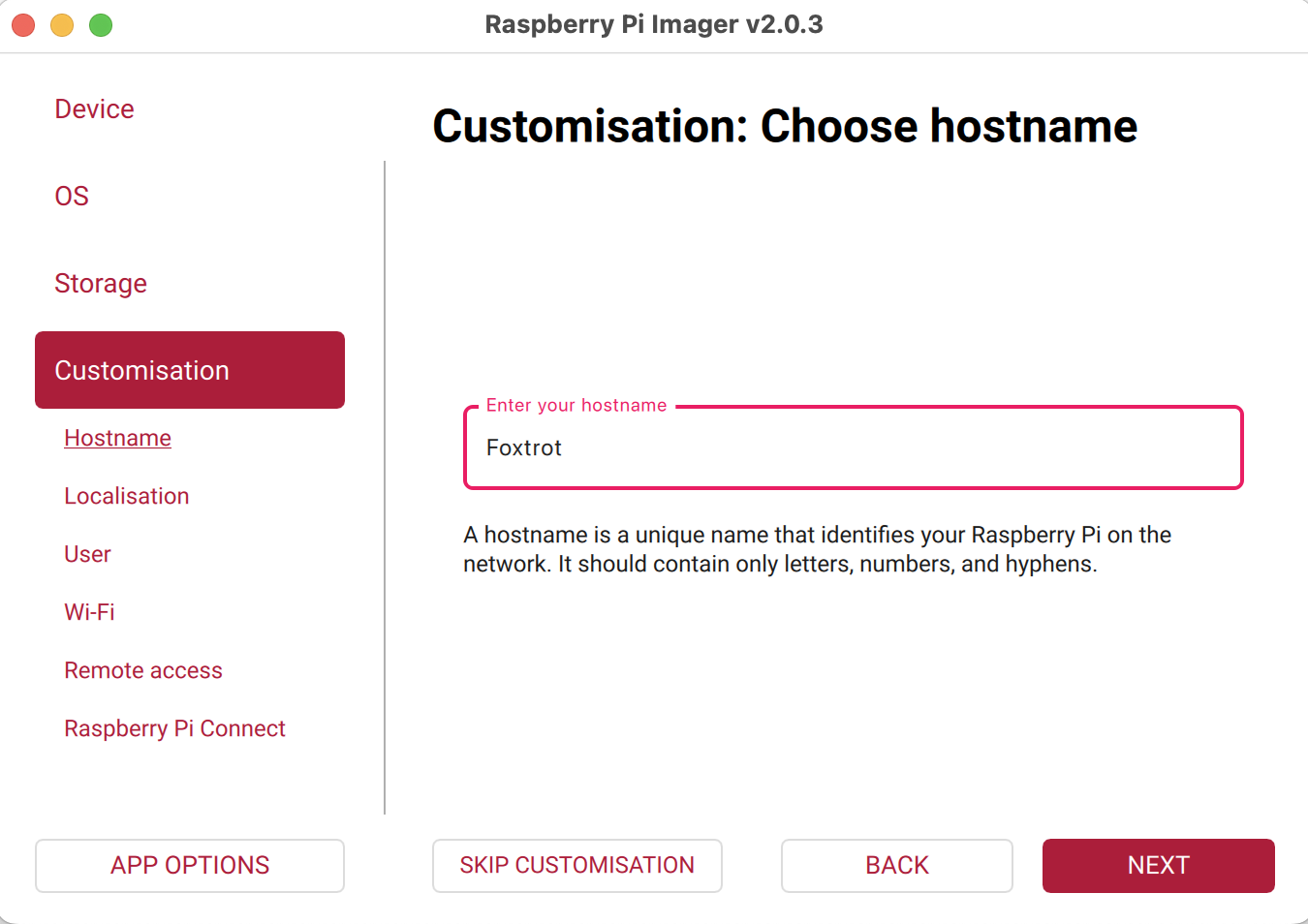
- First, choose the hostname.
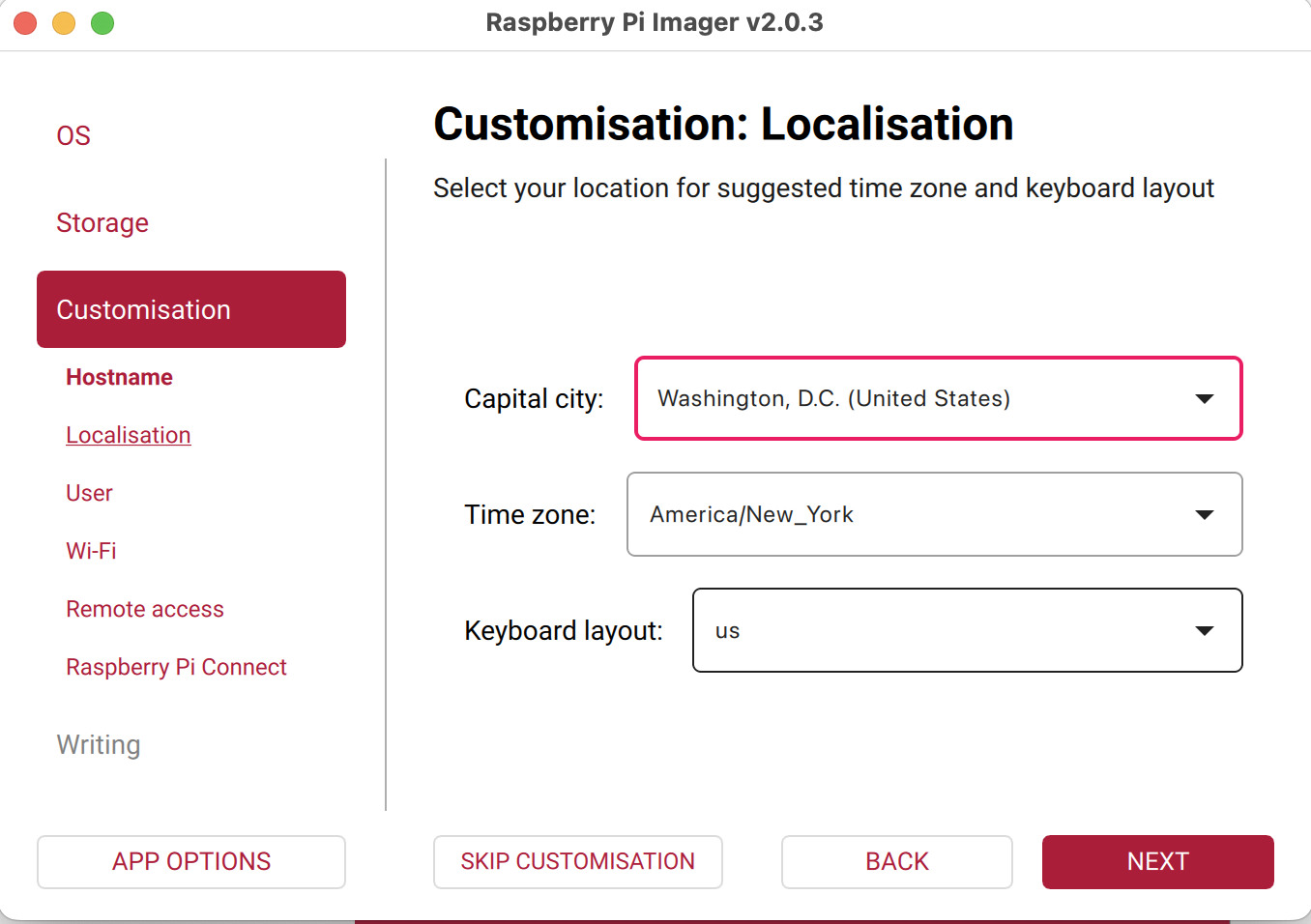
- Next, choose your country, time zone, and keyboard layout.
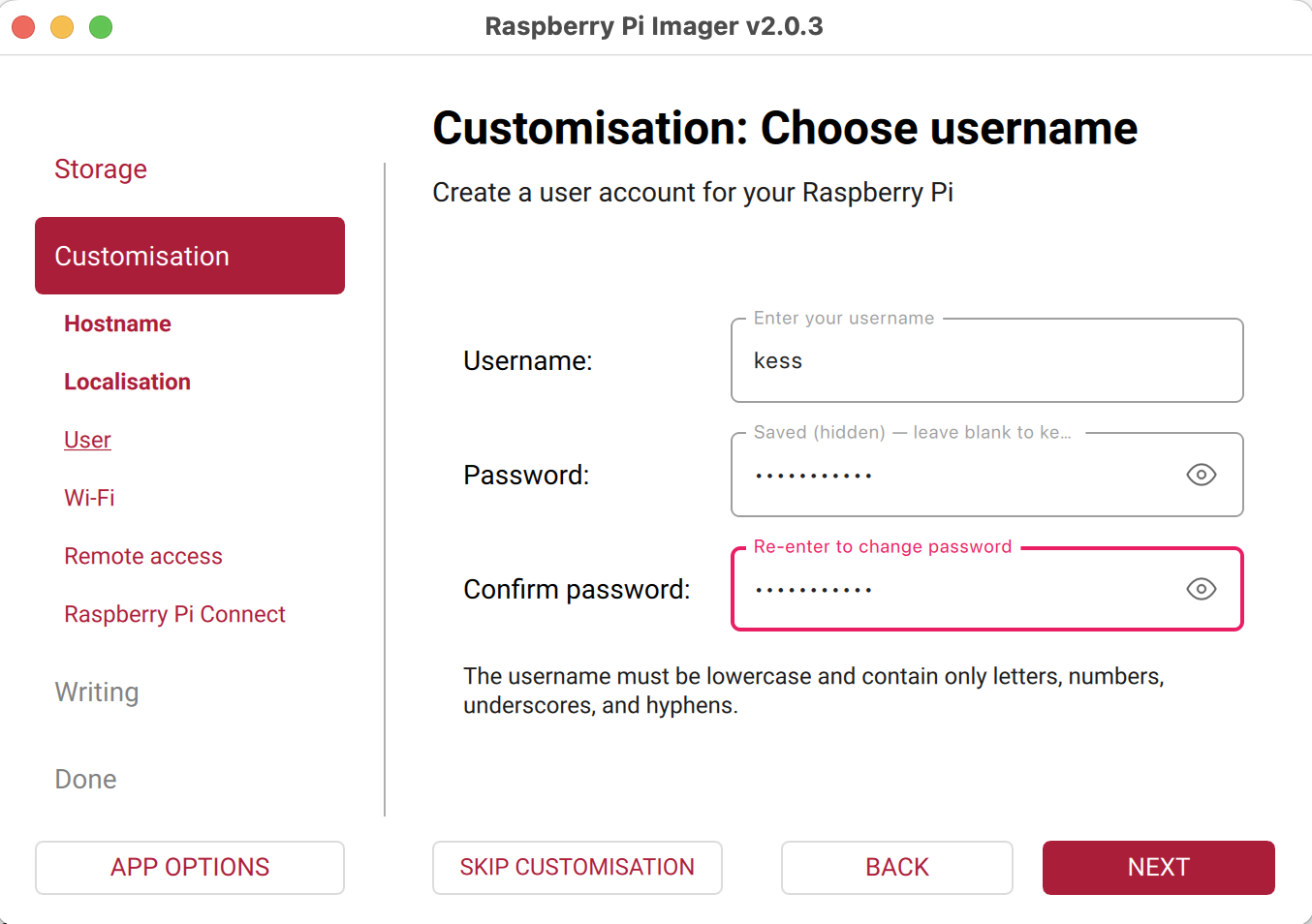
- Now, enter the user name and password.
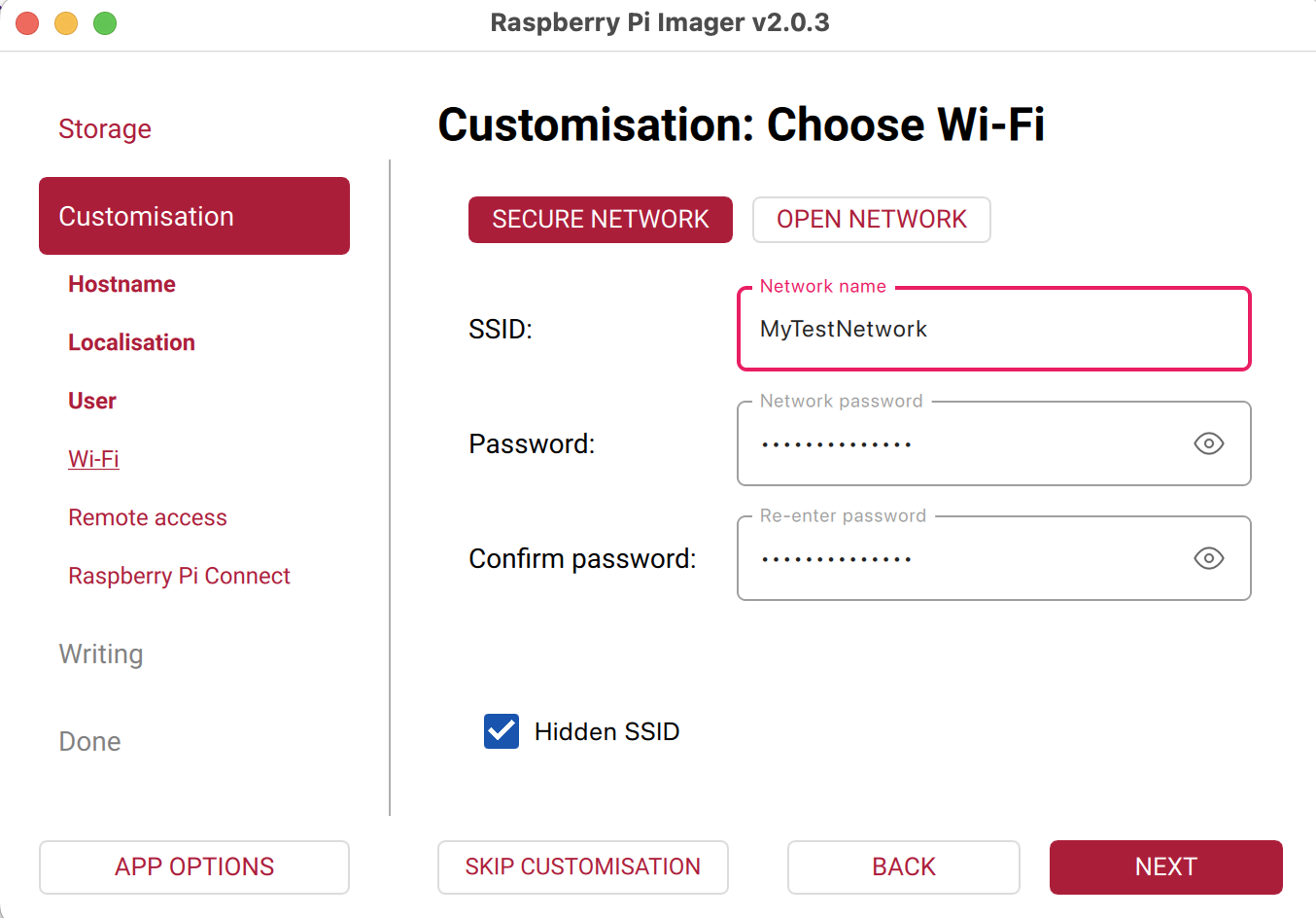
- The next step is to enter the network information for a local WiFi network.
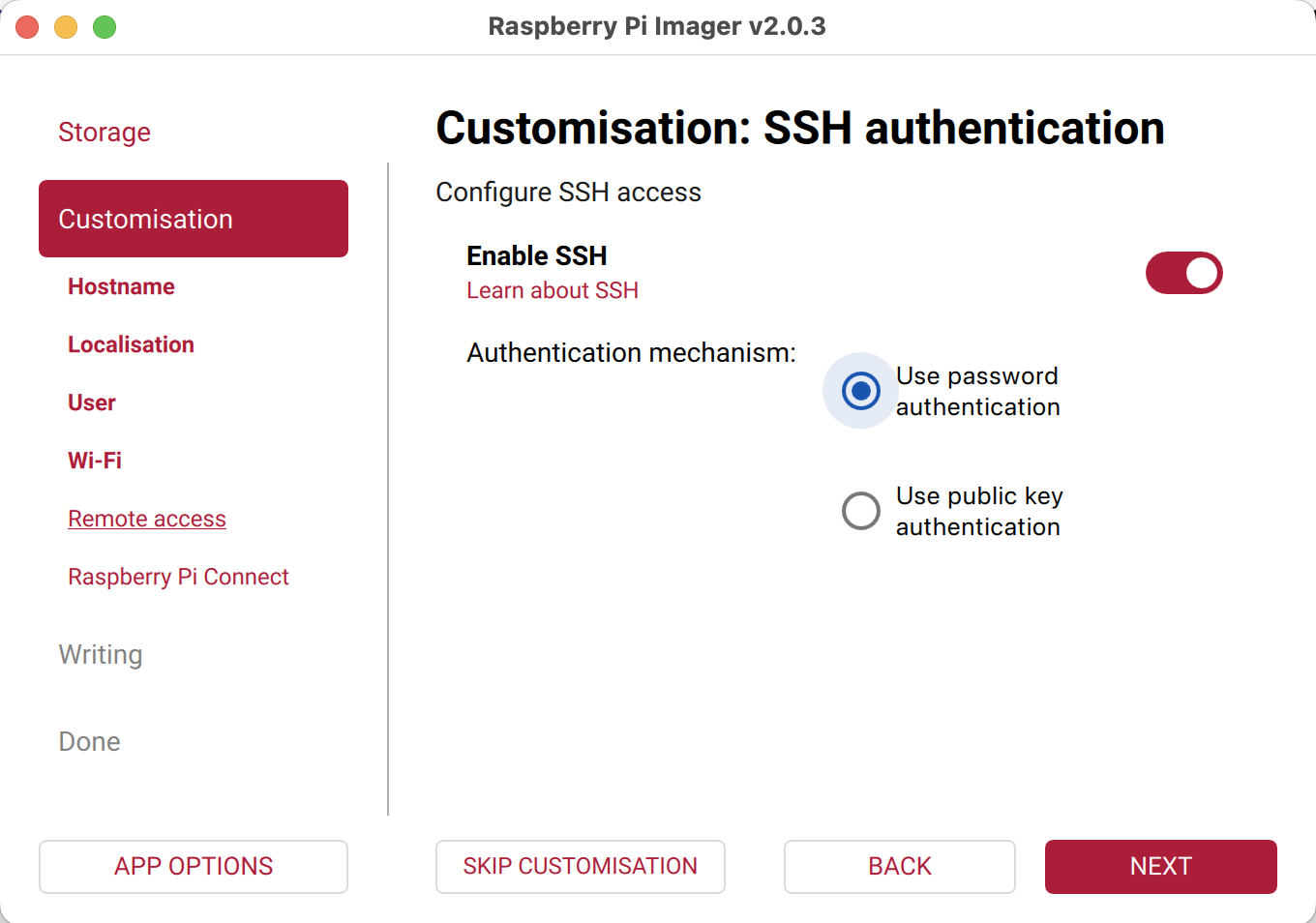
- The final customization step is to enable SSH. It's not required that you do so, but I recommend it unless you have a specific reason not to.
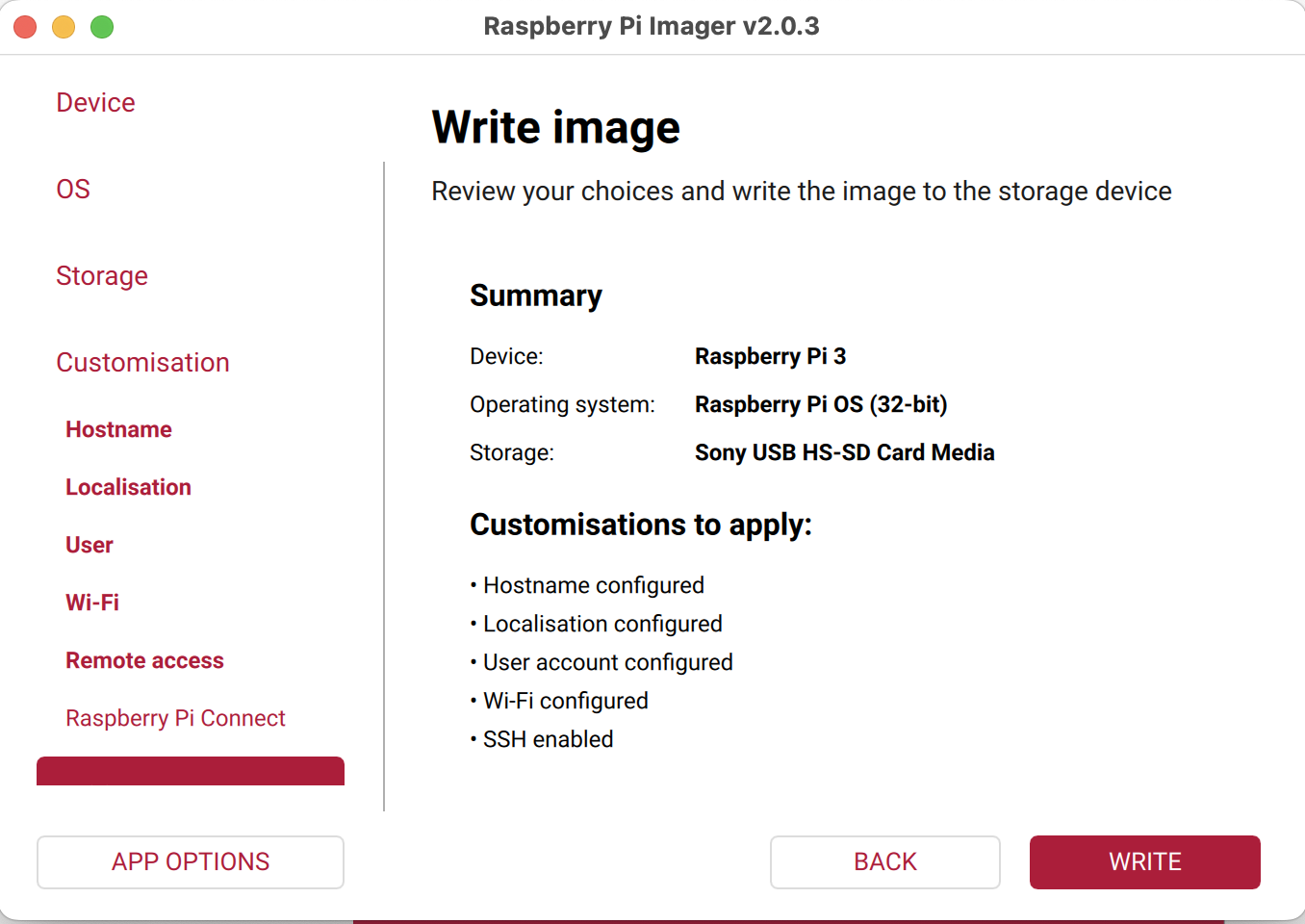
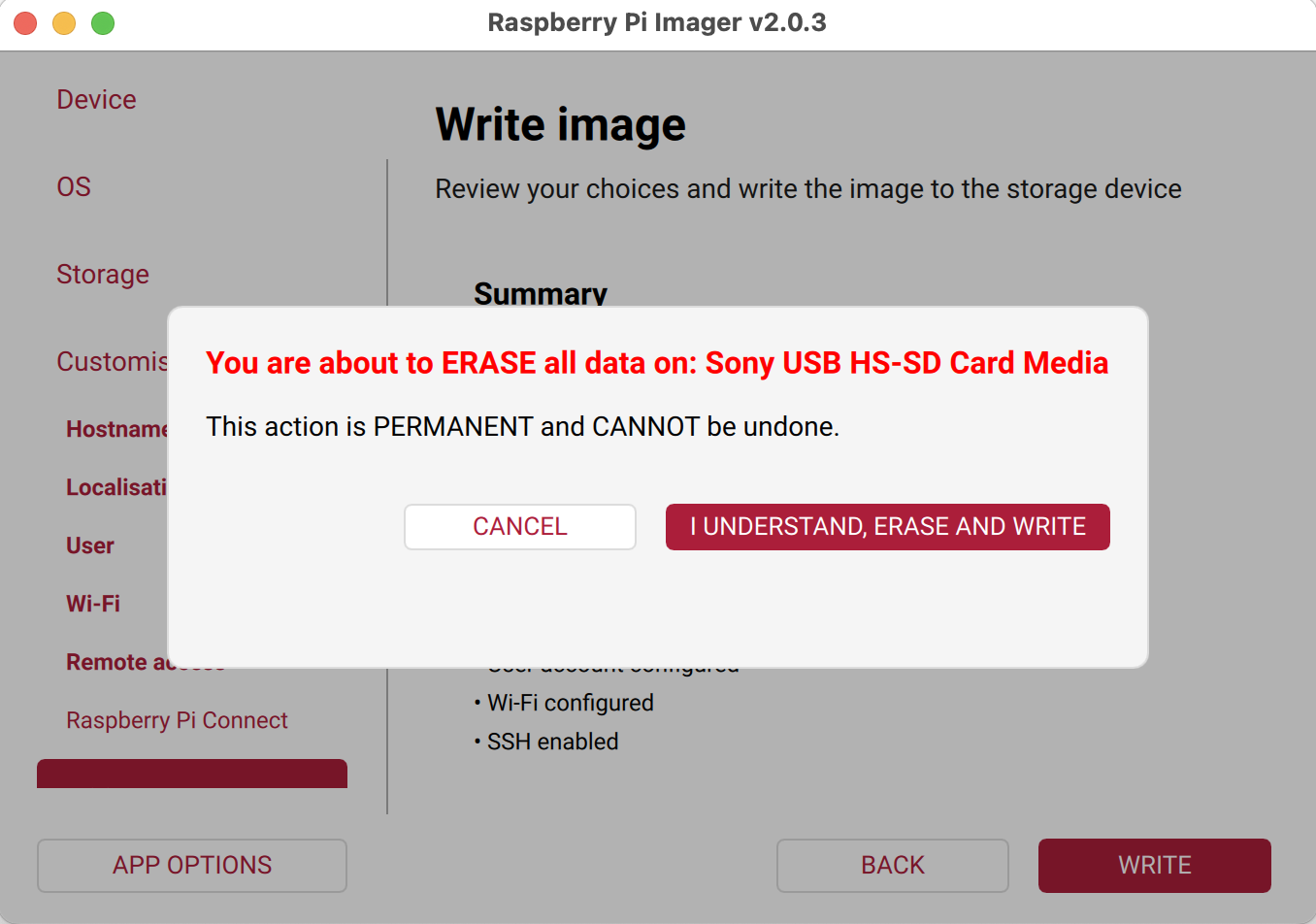
- A summary screen will now appear. If all of the information looks correct, click WRITE.
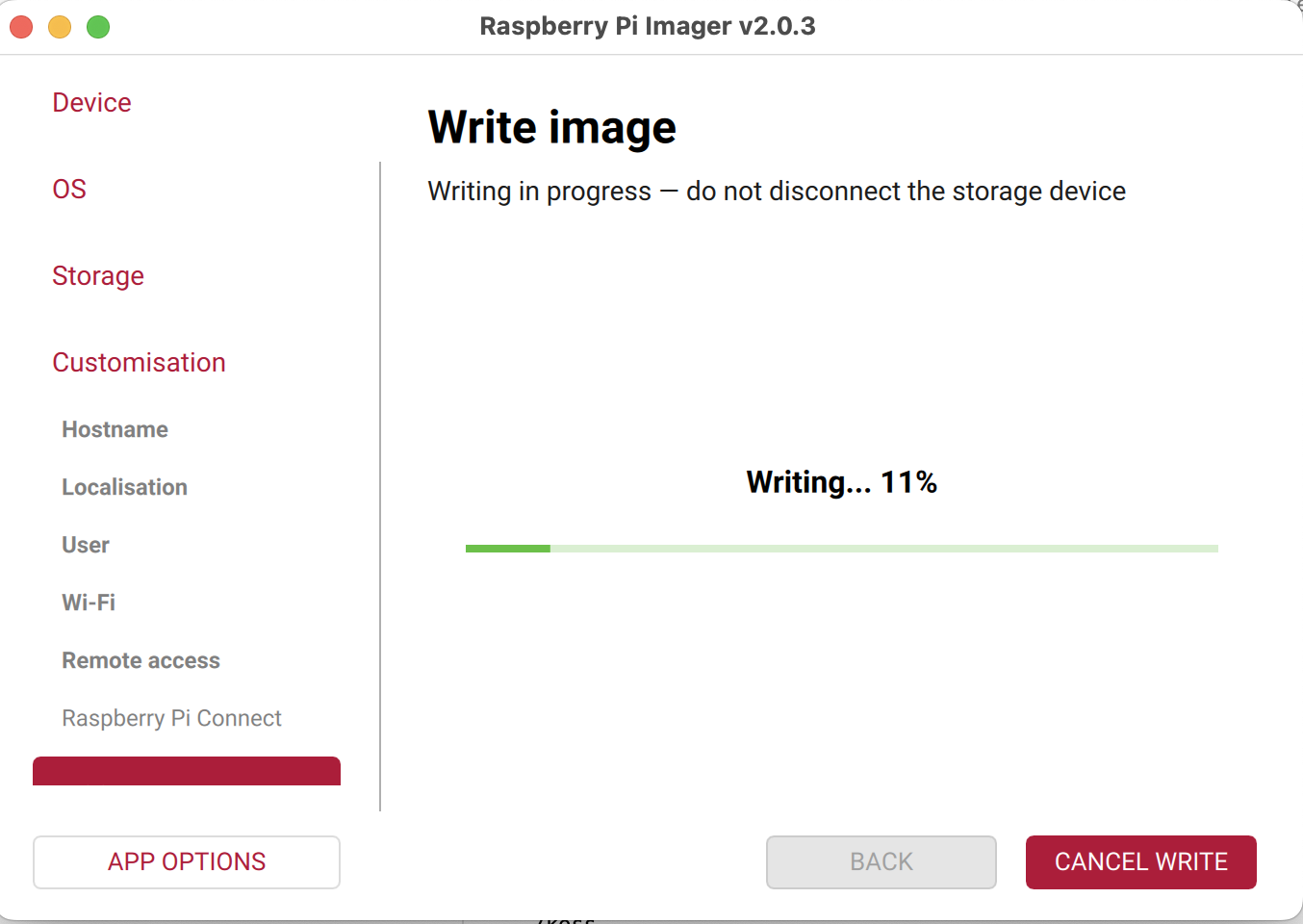
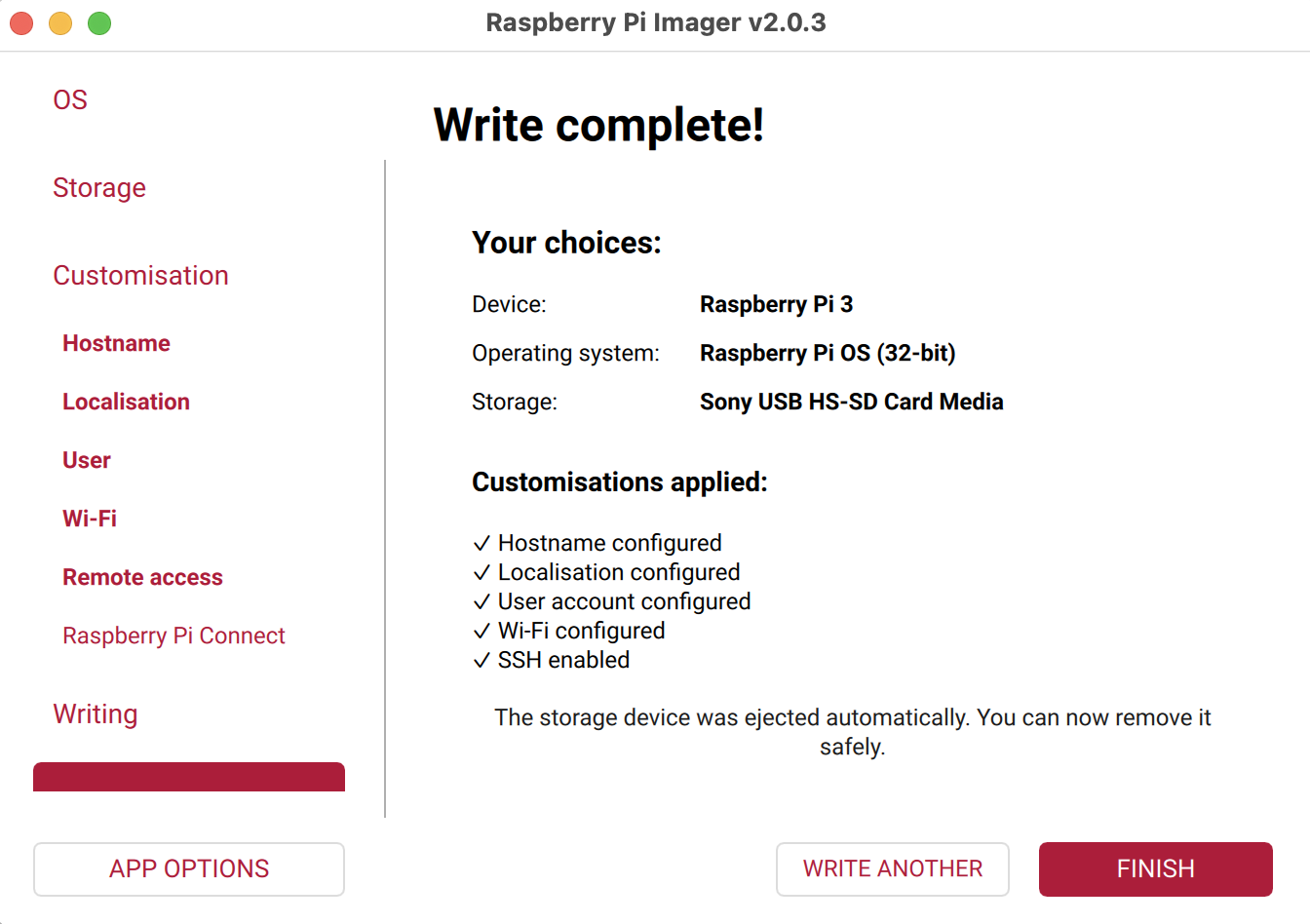
- You will be asked to confirm your decision. After you click I UNDERSTAND, ERASE AND WRITE, a progress screen will be shown and then a Write complete! message.
- Exit the Raspberry Pi Imager application.
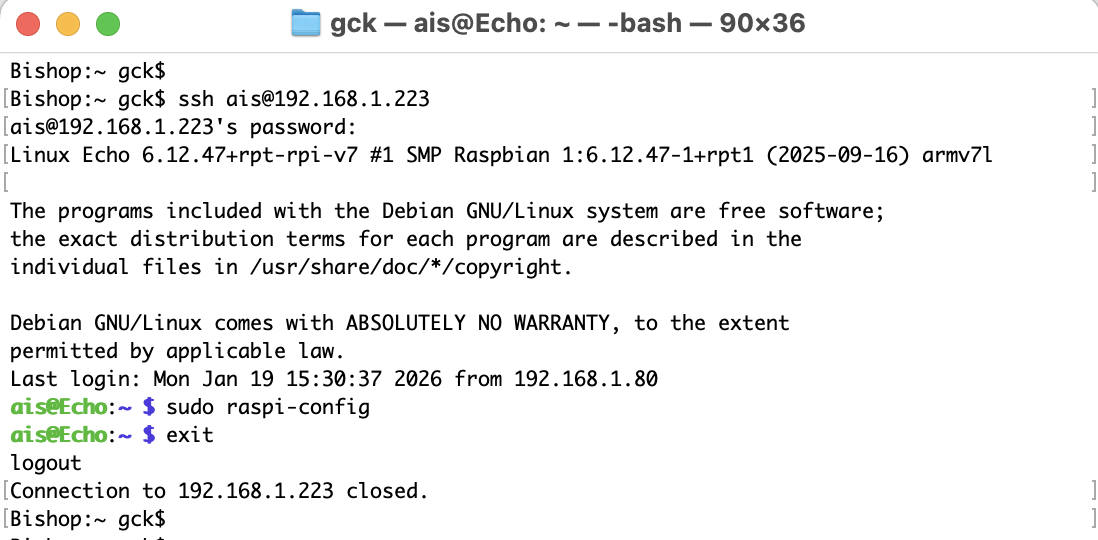
- If you customized the OS during the imaging phase, there are still a few things that you need to configure, namely, enabling the VNC server so that you can remotely access the RaspberryPi OS GUI and set up the serial port in order to read the dAISy HAT. There are two ways in which to do this, namely, by logging in from your computer via SSH (so-called headless mode) or directly plugging into the Raspberry Pi via a keyboard.
- If you did not customize the OS during imaging, then you have to do all of the configuration of the Raspberry Pi via a directly-attached keyboard.
- Plug in the Raspberry Pi. You should see a red LED light up on the Raspberry Pi; this indicates that it is booting. This should take just a few minutes.
- If you configured the Raspberry Pi for WiFi, it should automatically connect. Alternatively, you can plug into an Ethernet network via the device's Ethernet connector. In any case, you will need to determine the IP address of your Raspberry Pi. In order to use SSH, your computer needs to be on the same network as the Raspberry Pi or will need the Raspberry Pi's public IP address.
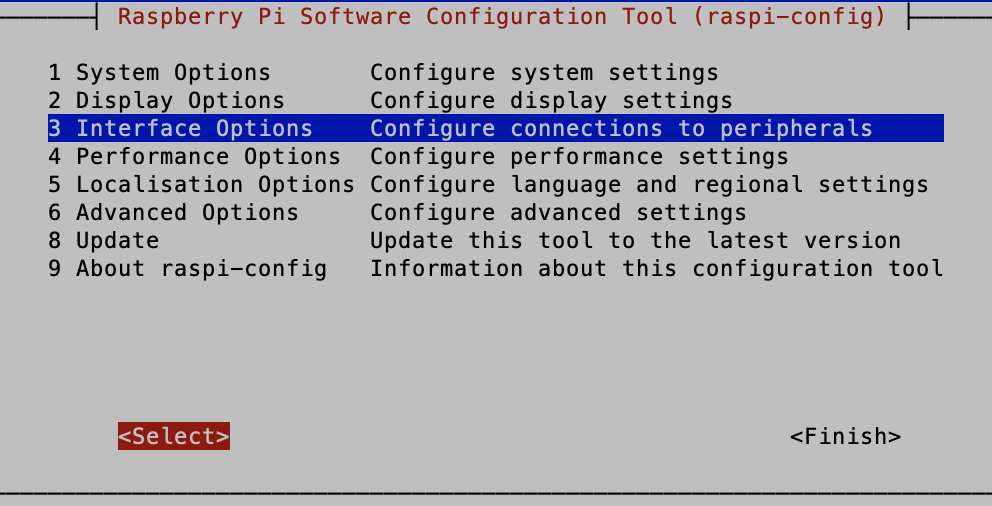
- Use the SSH client or command line on your computer to connect to the Raspberry Pi using the Raspberyy Pi's username and password. Once connected, enter the
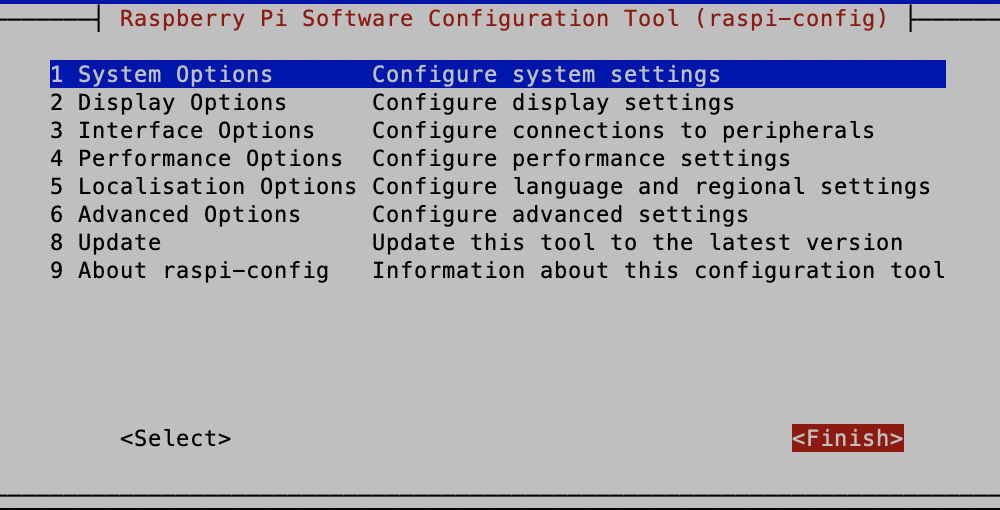
- Navigate to "3 Interface Options" using the down-arrow, and select it by using the right-arrow and hitting the RETURN key.
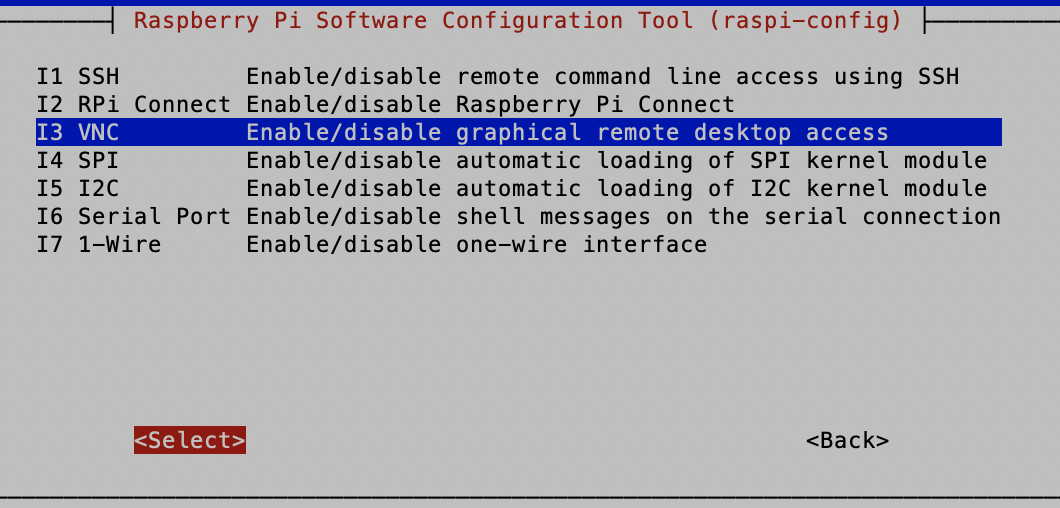
- Navigate to, and select, "I3 VNC."
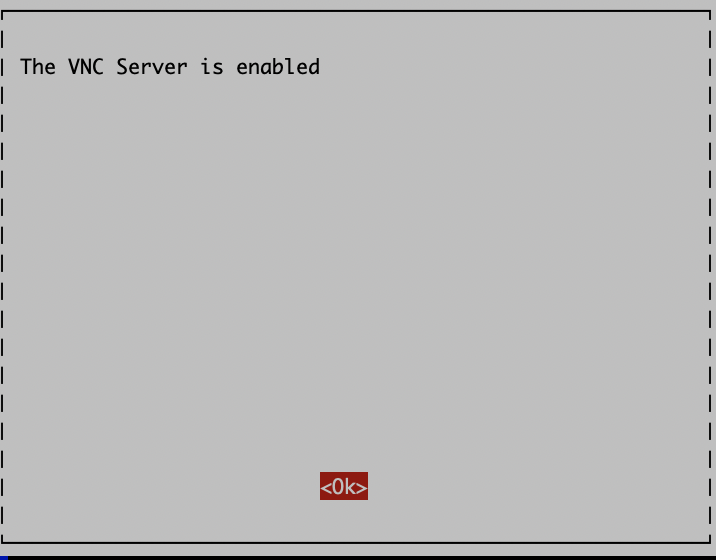
- At the "Would you like the VNC Server to be enabled?" screen, select <Yes>.
- When you see "The VNC Server is enabled," select <Ok>.
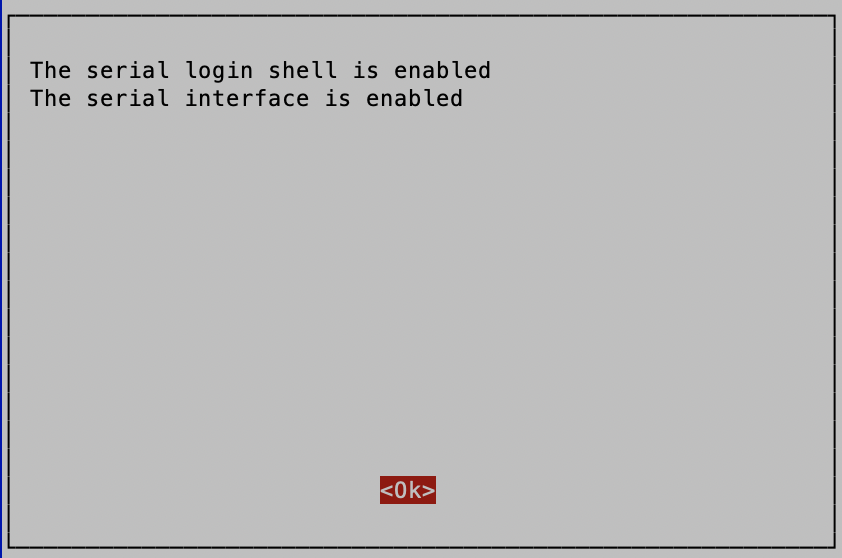
- Return to "3 Interface Options" and select the "I6 Serial Port" option. Answer <Yes> to both questions.
- When done, finish by hitting the right-arrow twice and hitting RETURN.
- At this point, you should be able to access the connect to the Raspberry Pi's desktop using the VNC client on your computer.
- Attach your I/O devices (i.e., keyboard/mouse/monitor) to the Raspberry Pi.
- Plug in the Raspberry Pi. You should see a red LED light up on the Raspberry Pi; this indicates that it is booting. It might take a few minutes, but you will soon see what appears to be a Linux-like desktop!
- Enter the configuration menu by clicking on the Raspberry icon
 in the upper left of the screen, and then select Preferences, Control Centre:
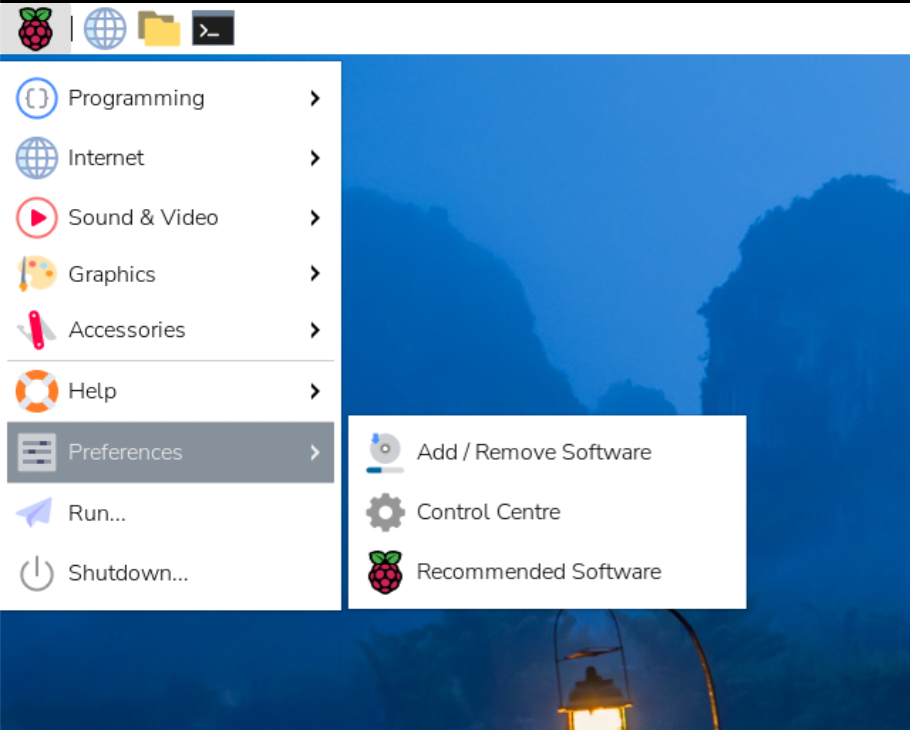
- If you entered configuration information above during the OS imaging process, your Raspberry Pi is already mostly configured (except missing a couple of essential elements, discussed below). You should step through the configuration tabs to ensure that what you want is there. This is also the way to enter any missing information or change information later.
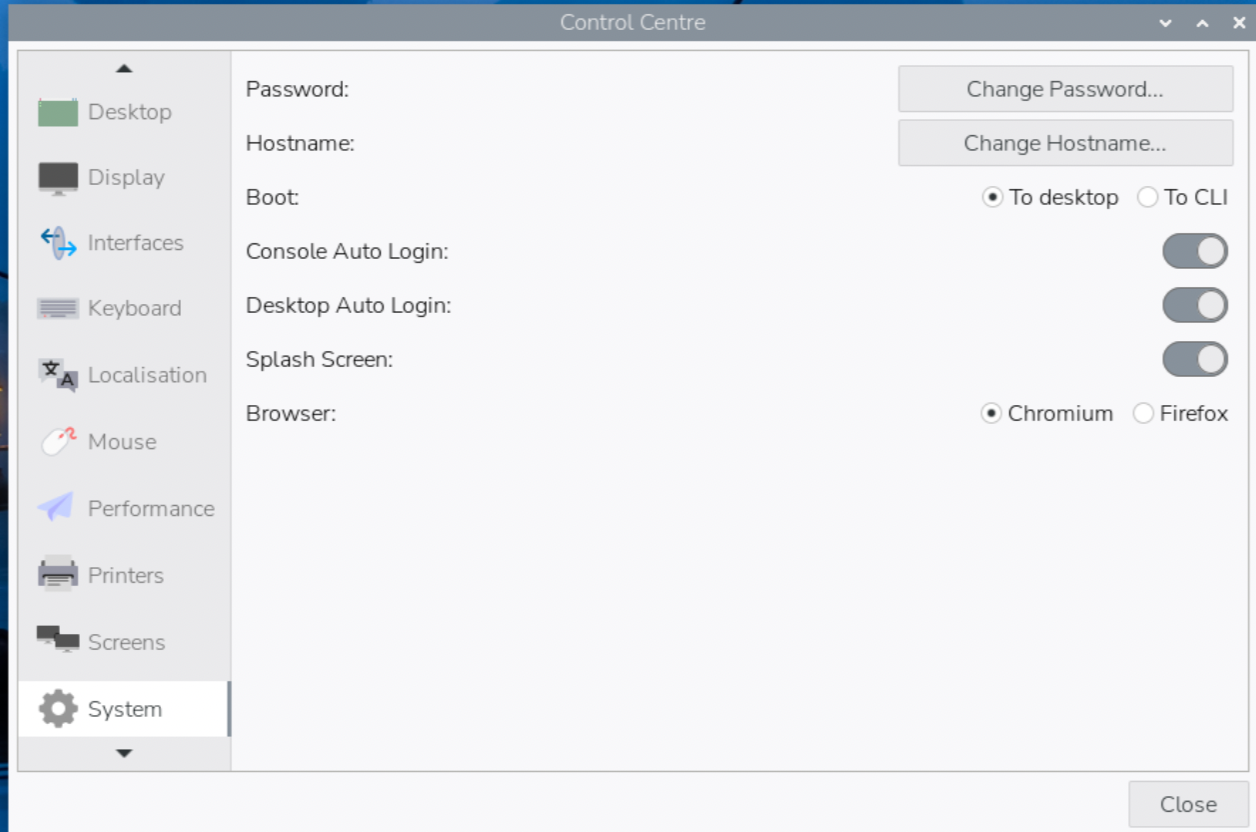
- The System tab shows the system's Hostname. This is also where you can Change Password, direct the boot process to the desktop or command line interface (CLI), set the automatic login option, and more.
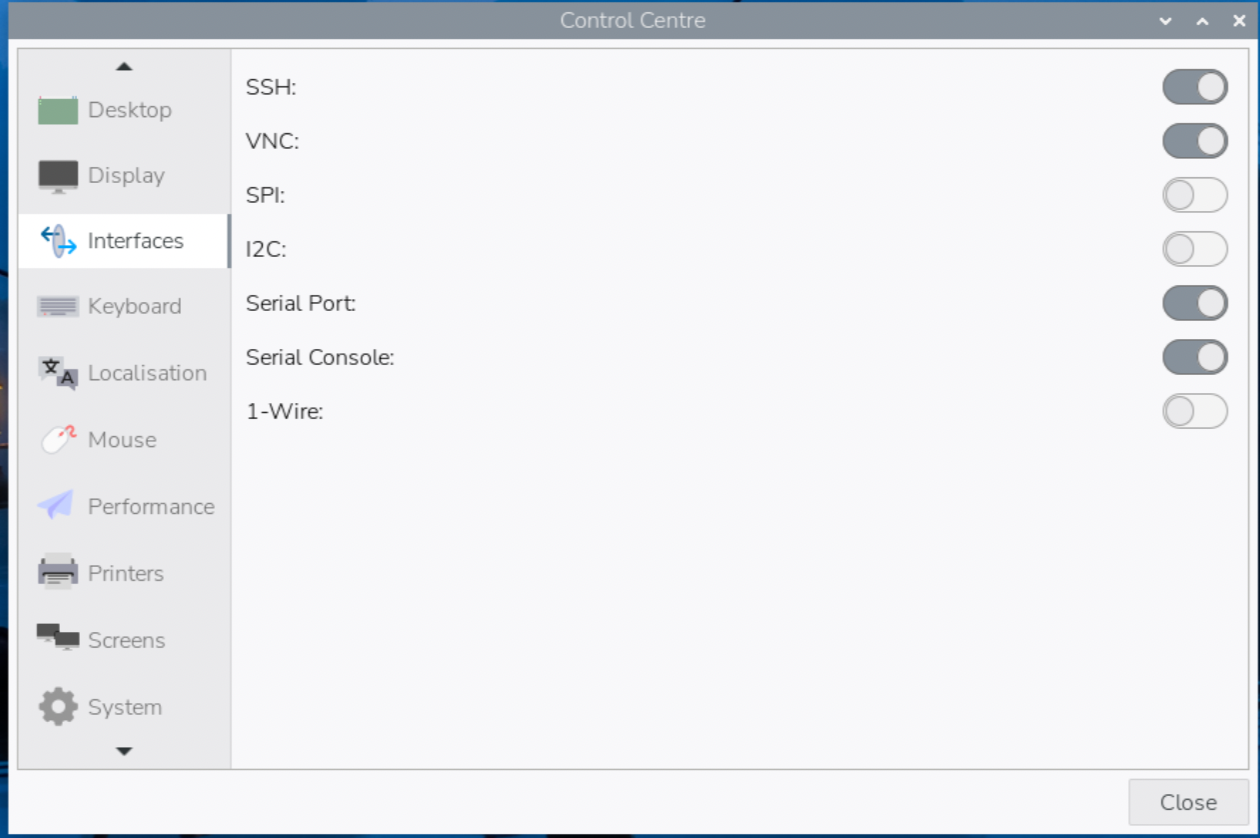
- You will need to make some changes on the Interfaces tab:
- Be sure that the Serial Port slider is set
- If you enabled SSH in the imaging process, confirm that the SSH slider is set. You should probably also enable VNC to allow remote login to the desktop. [NOTE: You might need to engage port forwarding and/or make other changes to your firewall to allow SSH/VNC traffic into your network. SSH uses TCP port 22 and VNC uses TCP port 5900.]
- If SSH is enabled, you can also easily get FTP access to the device using any FTP client that supports SSH File Transfer Protocol (SFTP). [Do not confuse SFTP with FTPS; the latter is FTP over SSL/TLS.]
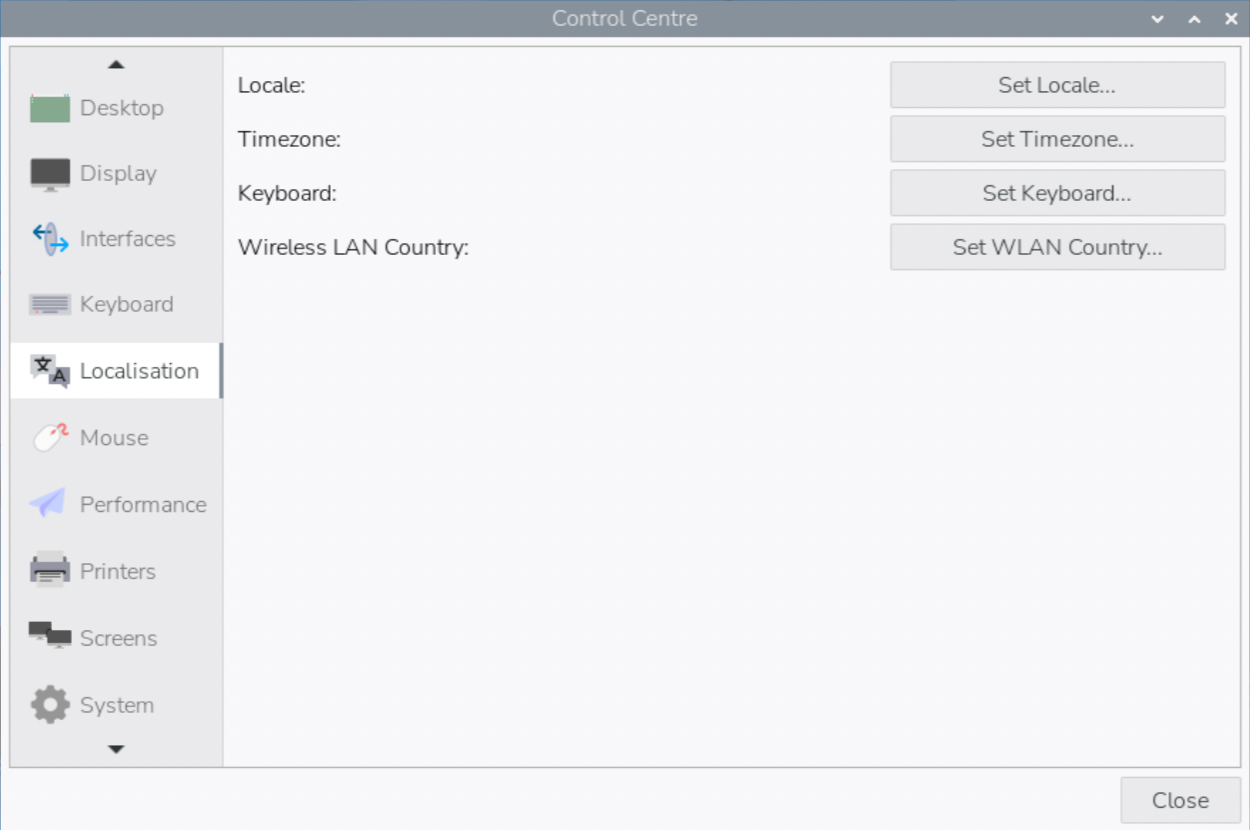
- Information on the Localisation tab should be mostly set if you entered information during the imaging process:
- Set your language and country by clicking the Set Locale... button. This information was not provided during the imaging process so enter it here.
- Set your time zone area and location by clicking the Set Timezone... button.
- Set the keyboard model and layout by clicking the Set Keyboard... button.
- If you intend to use WiFi, click the Set WiFi Country... button to select a country.
- When the configuration looks ok, click Close. If asked to reboot; click Yes.
- Click on Options (the gear icon)
- Click on Charts
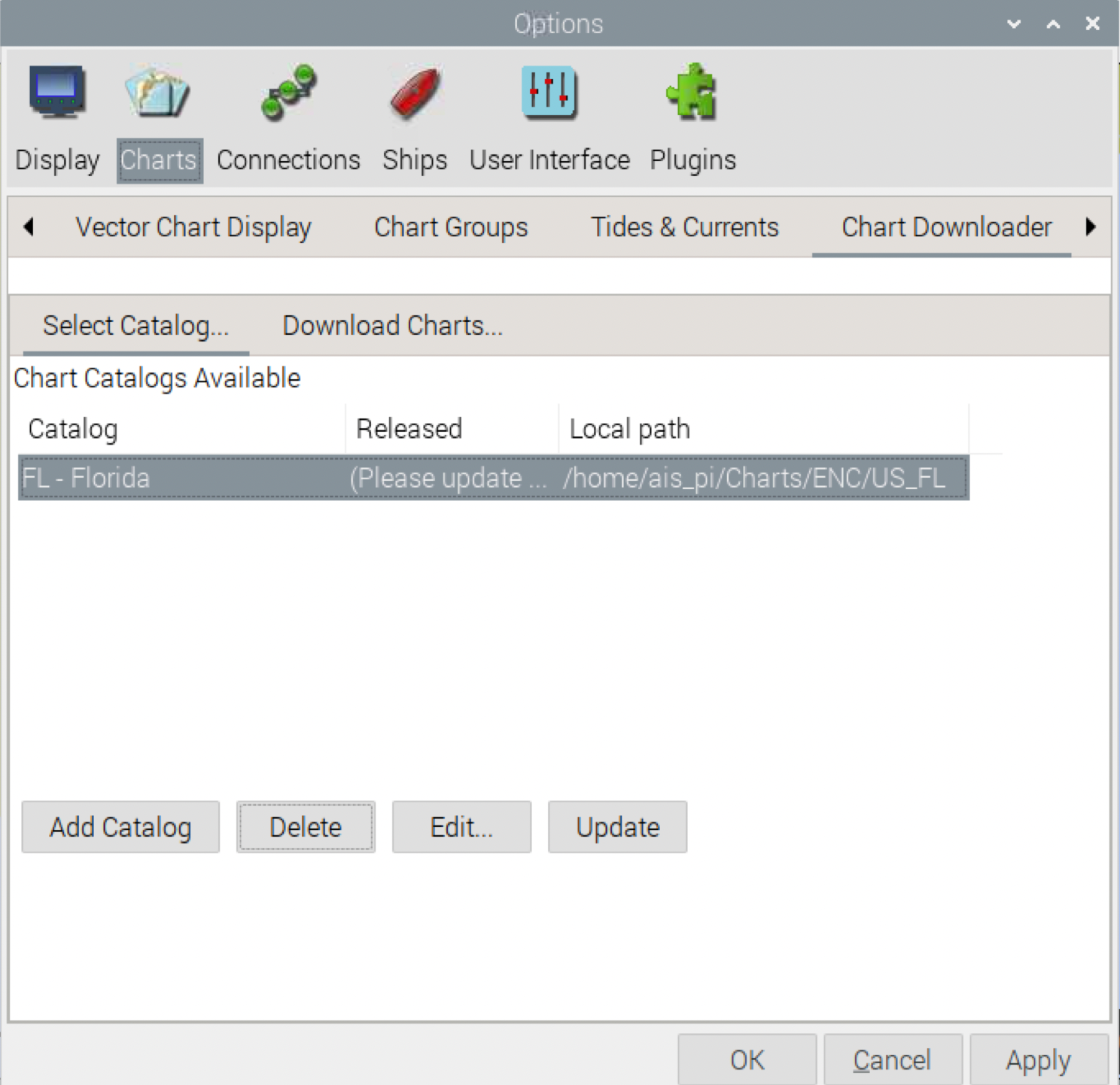
- The easiest way to download charts is to select the Chart Downloader tab.
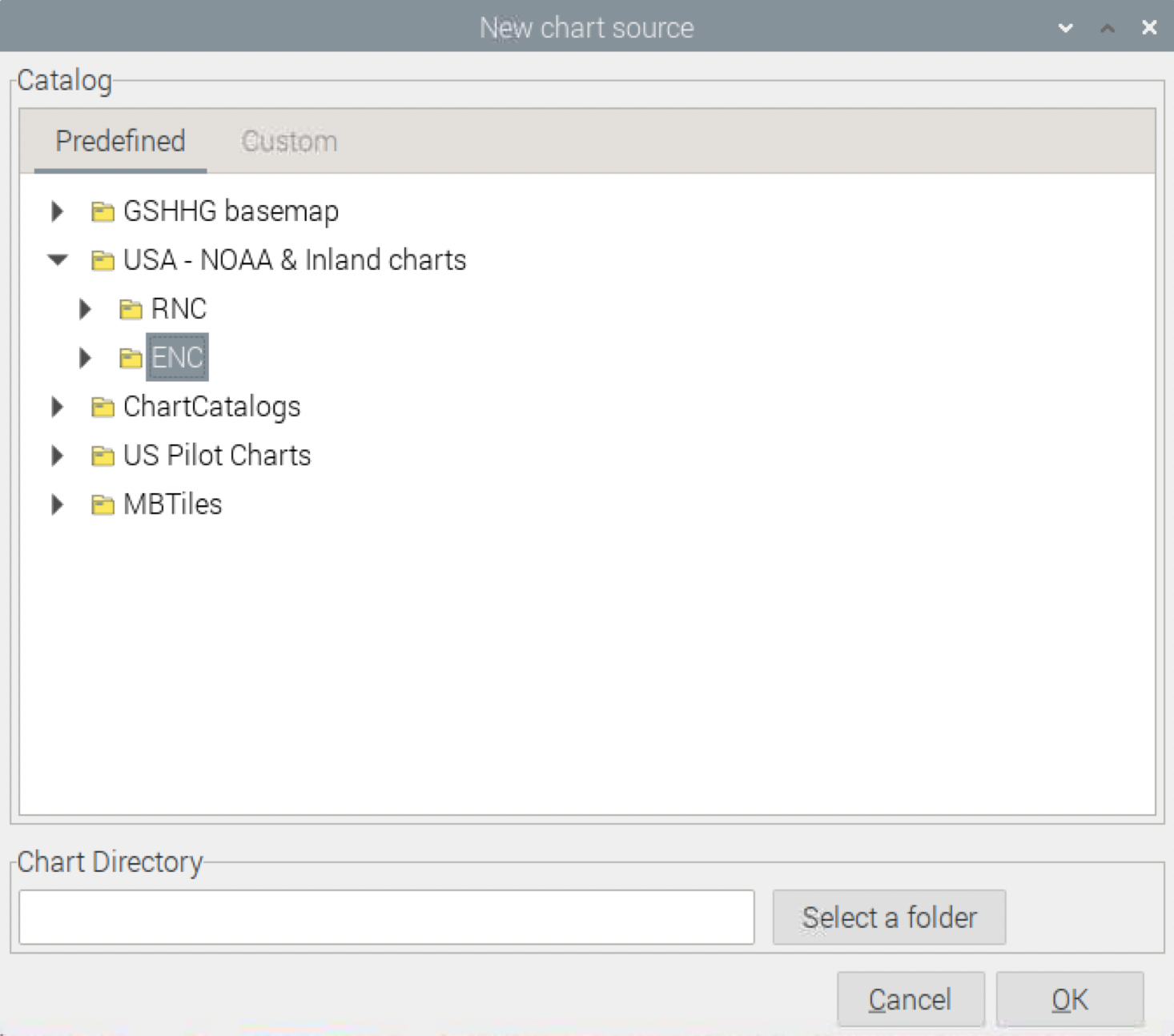
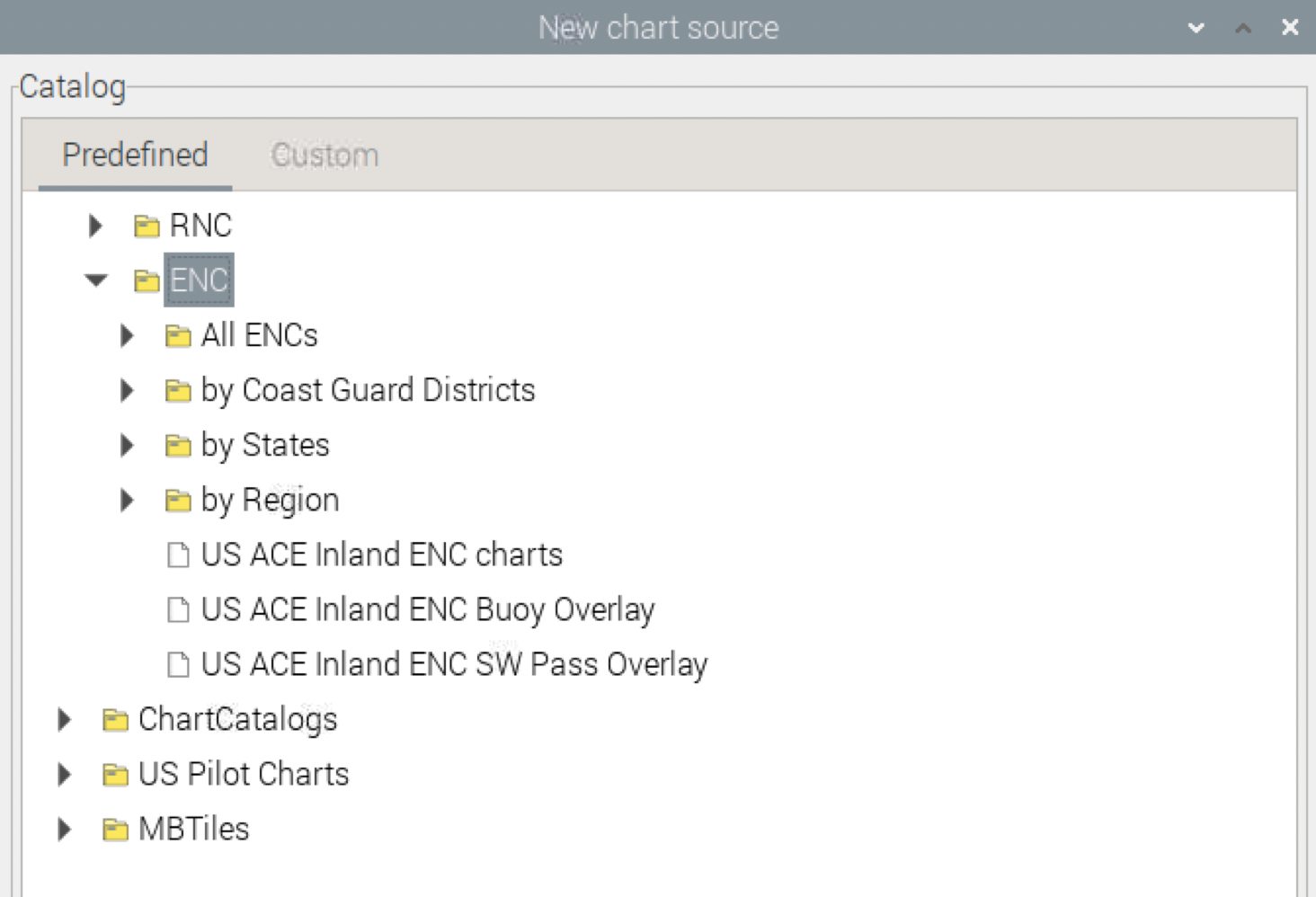
- Click the Add Catalog button to see the Chart Catalog. From here, you can scroll down to see a variety of chart catalogs. In this case, I select the "USA - NOAA & Inland charts" catalog of Electronic Navigation Charts (ENC). Where available, you will almost always want to use ENC charts.
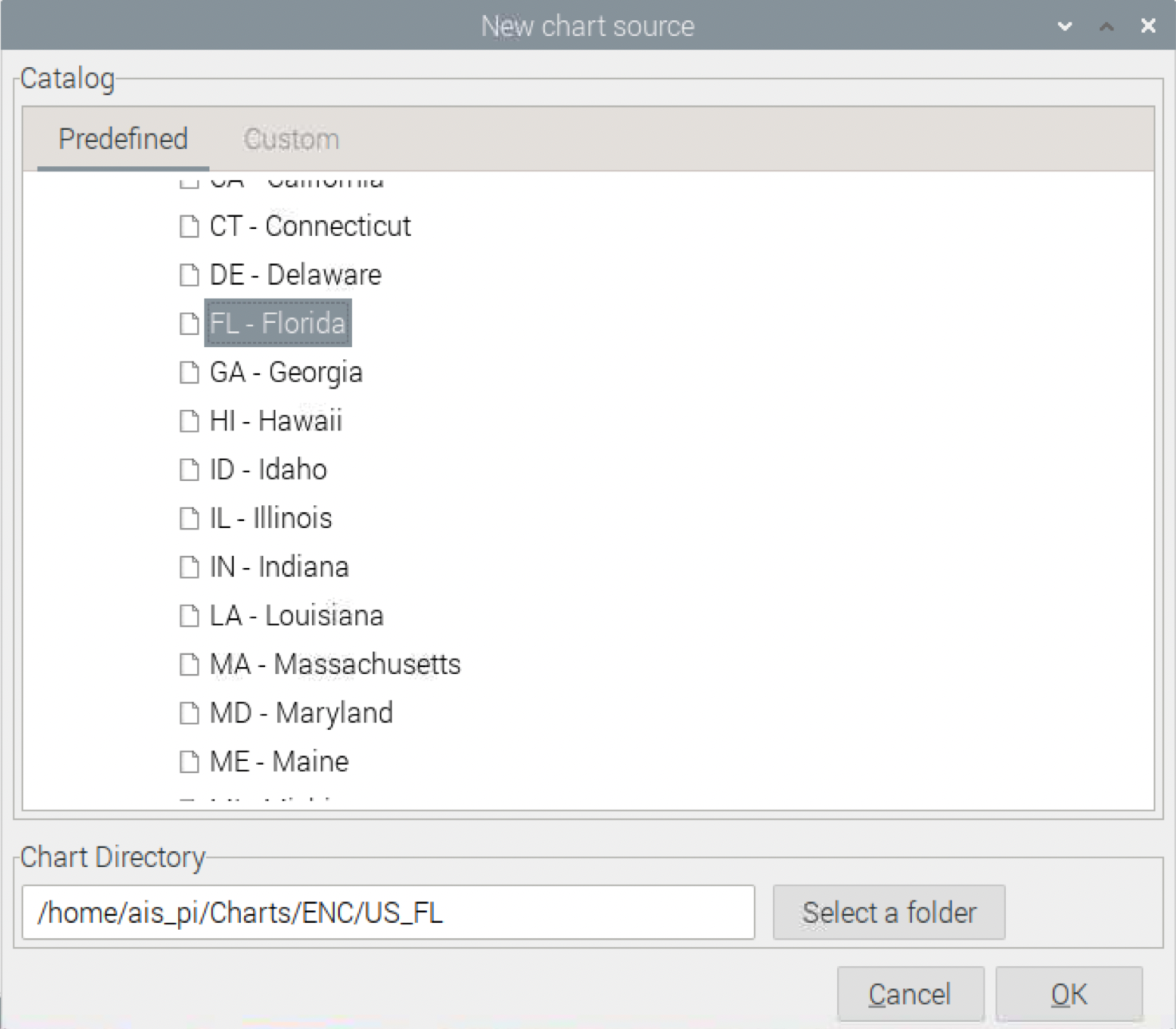
- The ENC NOAA charts can be viewed by state, USCG District, and other options. In this case, I select "by States" and scroll down to select "Florida" by clicking OK.
- Download the desired catalogs into the directory by clicking the OK button.
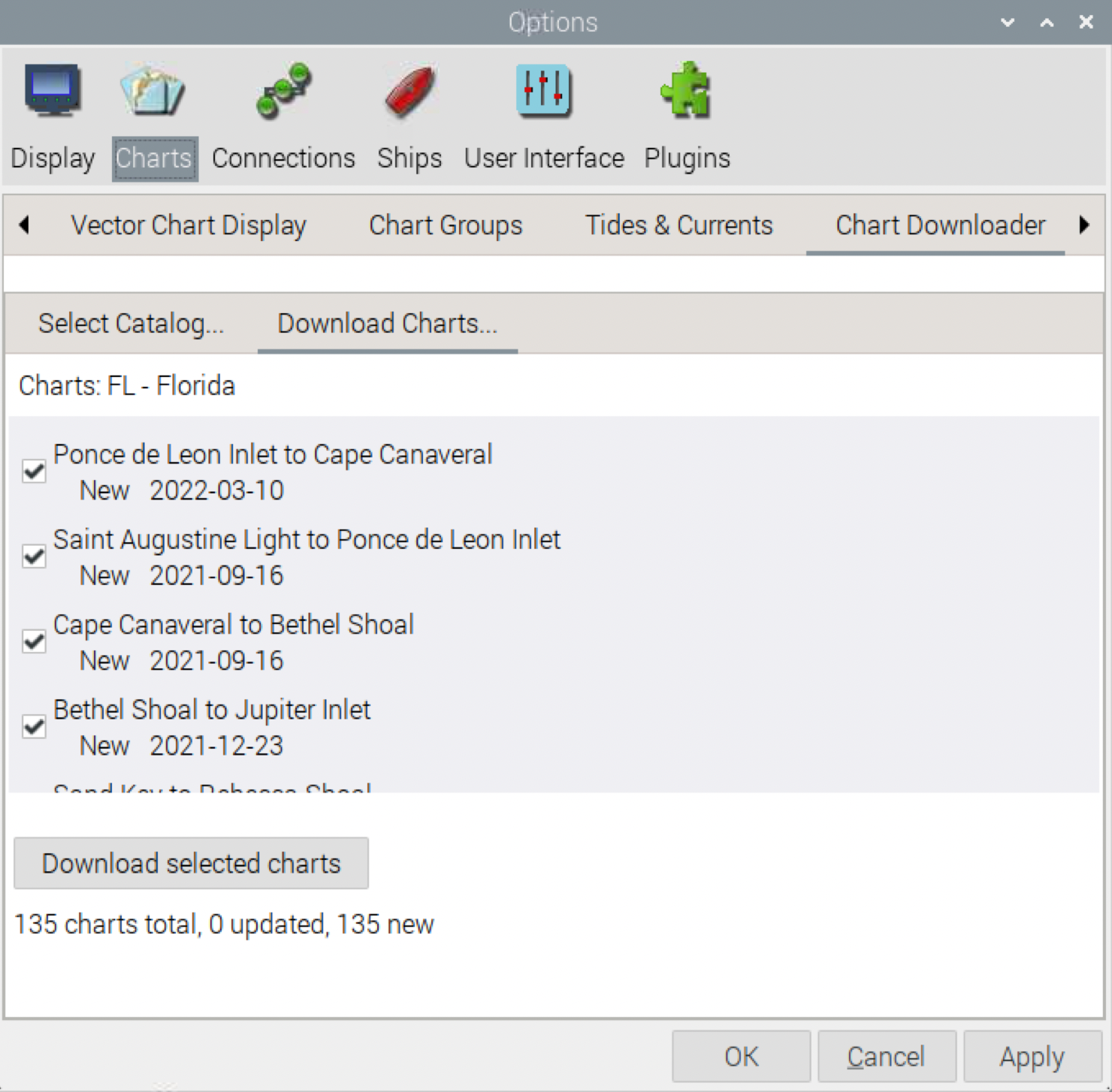
- Select a catalog by clicking on it. Next, click on the Download Charts... tab. You should see a list of chart names. Scroll through the box to select the charts that you want. In order to make this selection, you need to know the name of the chart(s) you want. (Alternatively, right-click and choose "Select All" to get every chart in this catalog. That can be much simpler than the hit-and-miss approach of scrolling through a list of several hundred charts.) Click the "Download selected charts" button to download the charts to your system. When that is complete, click OK.
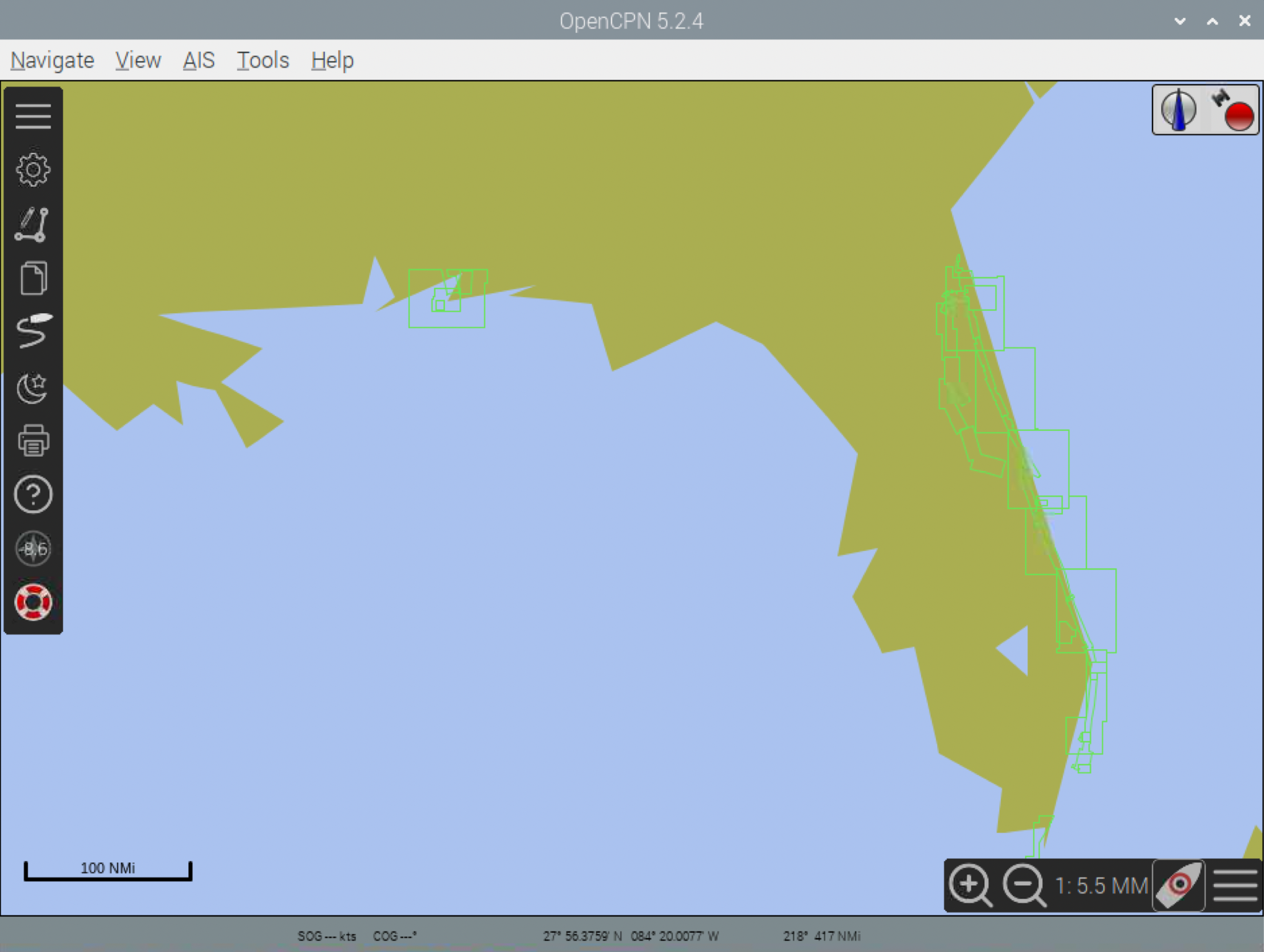
- The configuration shown below displays the selected charts from Florida. Scroll in closer to get the detail!
- As above, click on Options (the gear icon)
- Click on Connections
- Scroll down and click the Add Connection button
- Under Properties:
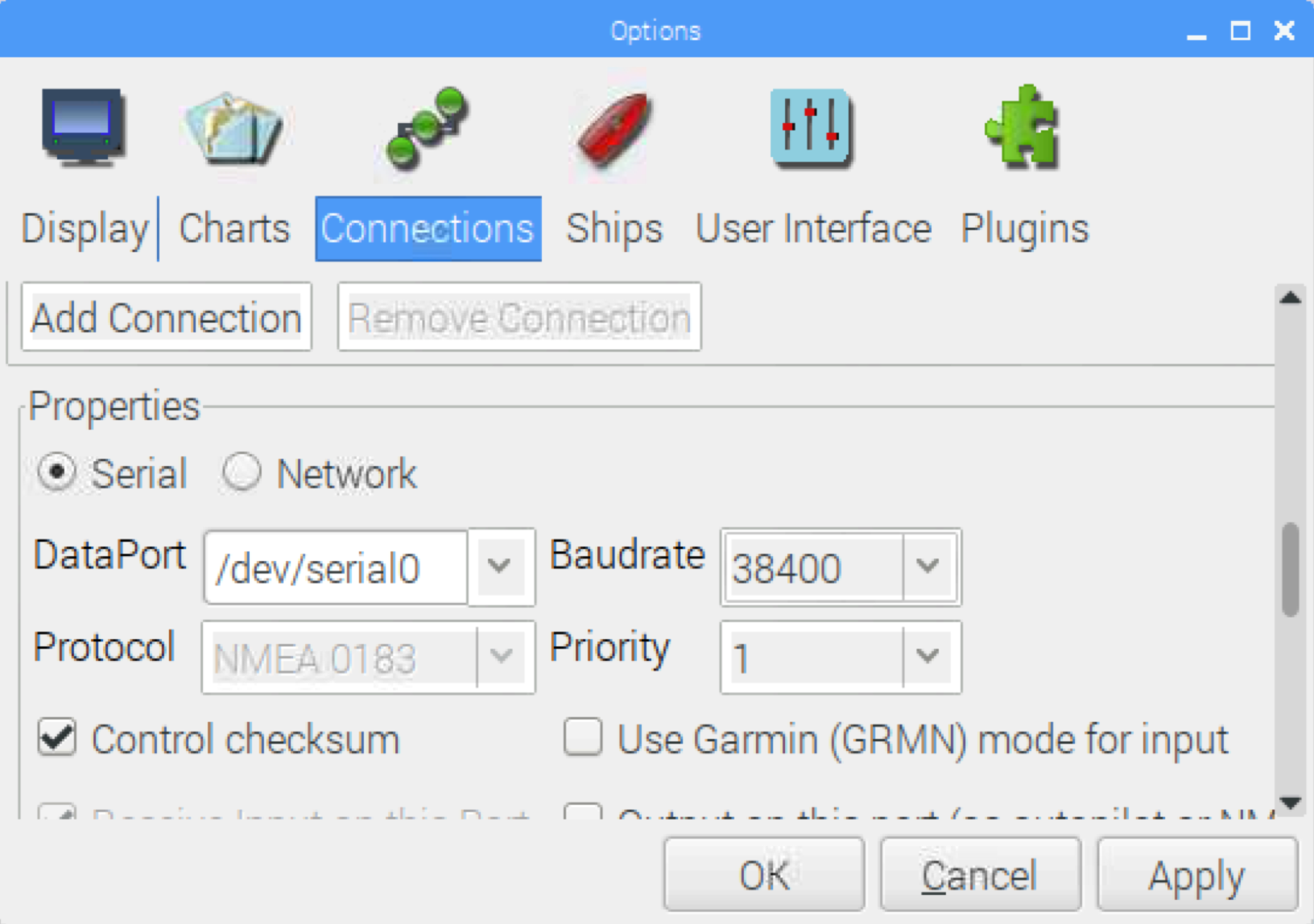
- If you are using the dAISy HAT (or other data source on the serial I/O bus):
- Click the Serial radio button
- Select (or enter) '/dev/ttyS0/ or '/dev/serial0' in the DataPort field
- Select a Baudrate of 38400
- Click OK
- If you are using an external device and getting a network-based data feed:
- Click the Network radio button
- Select the protocol (most likely to be TCP but will depend upon your setup)
- Enter the IP address of the device
- Enter the port number used by the protocol
- Click OK
- Add a new connection, as above.
- Click the Network radio button
- Select the TCP protocol
- Use the IP address 0.0.0.0 since you are using yourself as the source
- Enter the port number you'd like to use (it is best to use a value in the range 1024-65535)
- Uncheck the Receive input on this Port box
- Check the Output on this port box
- Click OK
- AIS-catcher NMEA decoder (Wegmatt)
- AIS online decoder (AGG Software)
- AIS VDM/VDO Decoder (Maritec Solutions)
- AIVDM & AIVDO NMEA sentence decoder (RL.SE)
- AisDecoder (Neal Arundale)
- AISHub, an AIS data sharing and vessel tracking site
- AIS data from the area of Daytona Beach/Ponce de Leon Inlet, Florida can be found at http://ssia-ais.erau.edu/; for a live data feed, telnet or netcat to port 4000 at ssia-ais.erau.edu
- The Norwegian Coastal Administration offers real-time AIS data at IP address 153.44.253.27, port 5631 or https://kart.kystverket.no/share/9220e0e277e4
- Spire Global also has some historical AIS data that can be made available upon request.
Configuring the Raspberry Pi
You're now ready to get the Raspberry Pi running! For additional information on this phase, see the Getting started with your Raspberry Pi page.
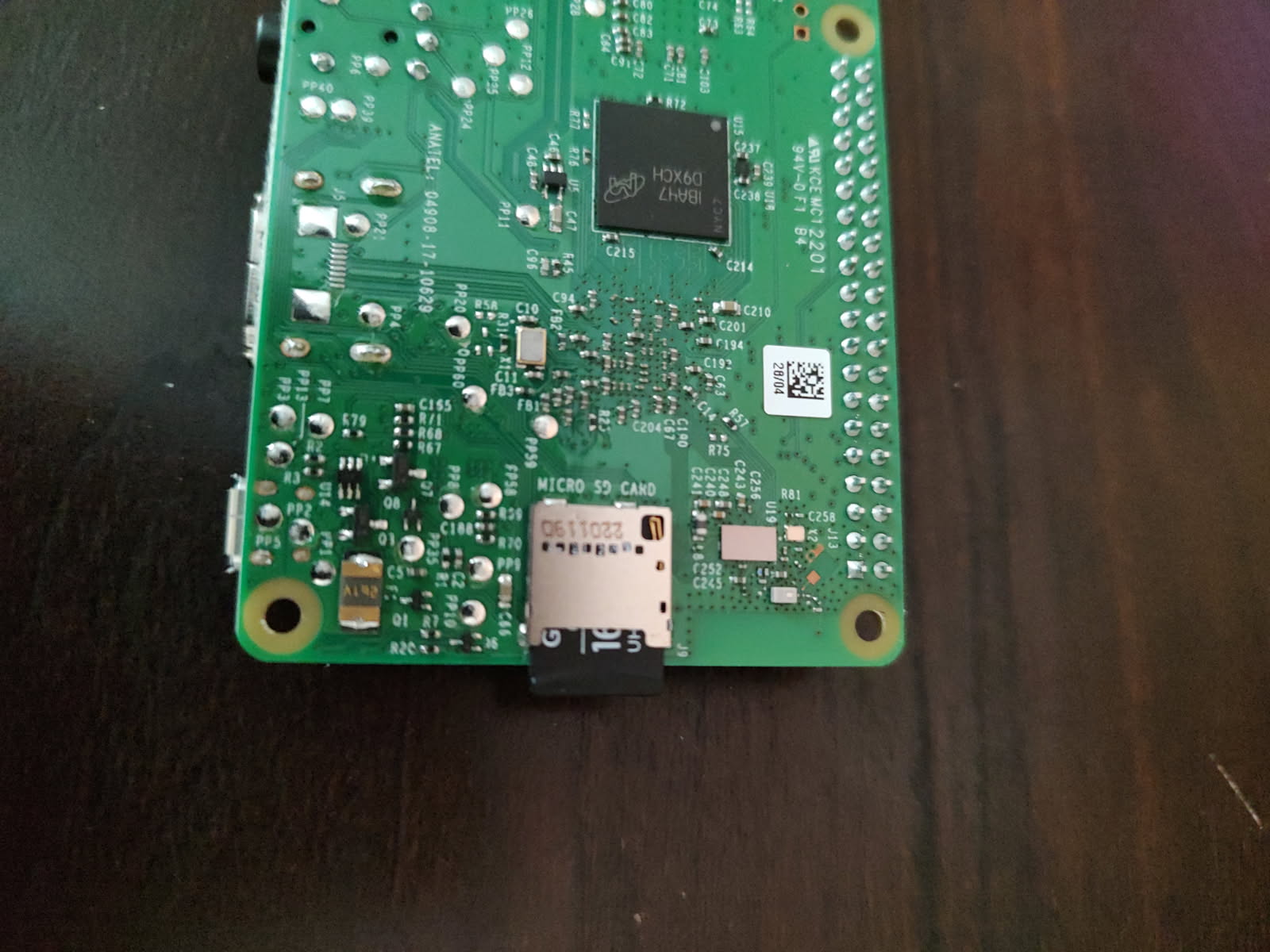
The first thing to do is to insert the microSD card into the Raspberry Pi's SD card slot.
At this point, you have some choices to make.
Choose the appropriate set of instructions below.
Log in and configure via SSH
Log in and configure using VNC
Final Comments
You can change the configuration parameters at any time using the GUI or command line interface. To use the CLI, open a terminal window and enter:
sudo raspi-config
Additional information on using the command line configuration utility can be found at the Raspberry Pi Foundation's raspi-config page.
Raspberry Pi OS uses Network Manager (nm) for network configuration. The command line tool for controlling Network Manager is called rmcli. Since this paper is not a tutorial about Raspberry Pi OS, I am offering little information about rm. You can learn about the options by entering this command from the command line:
man rmcli
Also, check out the Getting Started with Network Manager page.
Installing the dAISy HAT
Installing the dAISy HAT hardware is very straight-forward. You'll probably want to download the dAISy HAT AIS Receiver Manual for additional reference.
First, be sure to power down the Raspberry Pi! If you have played with computer hardware before, then installing the dAISy HAT daughterboard to the Raspberry Pi's GPIO pins won't be a problem. If you haven't done this before, all I can say is to work slowly, align the socket on the board onto the GPIO pins carefully, and press the cards together slowly and evenly.
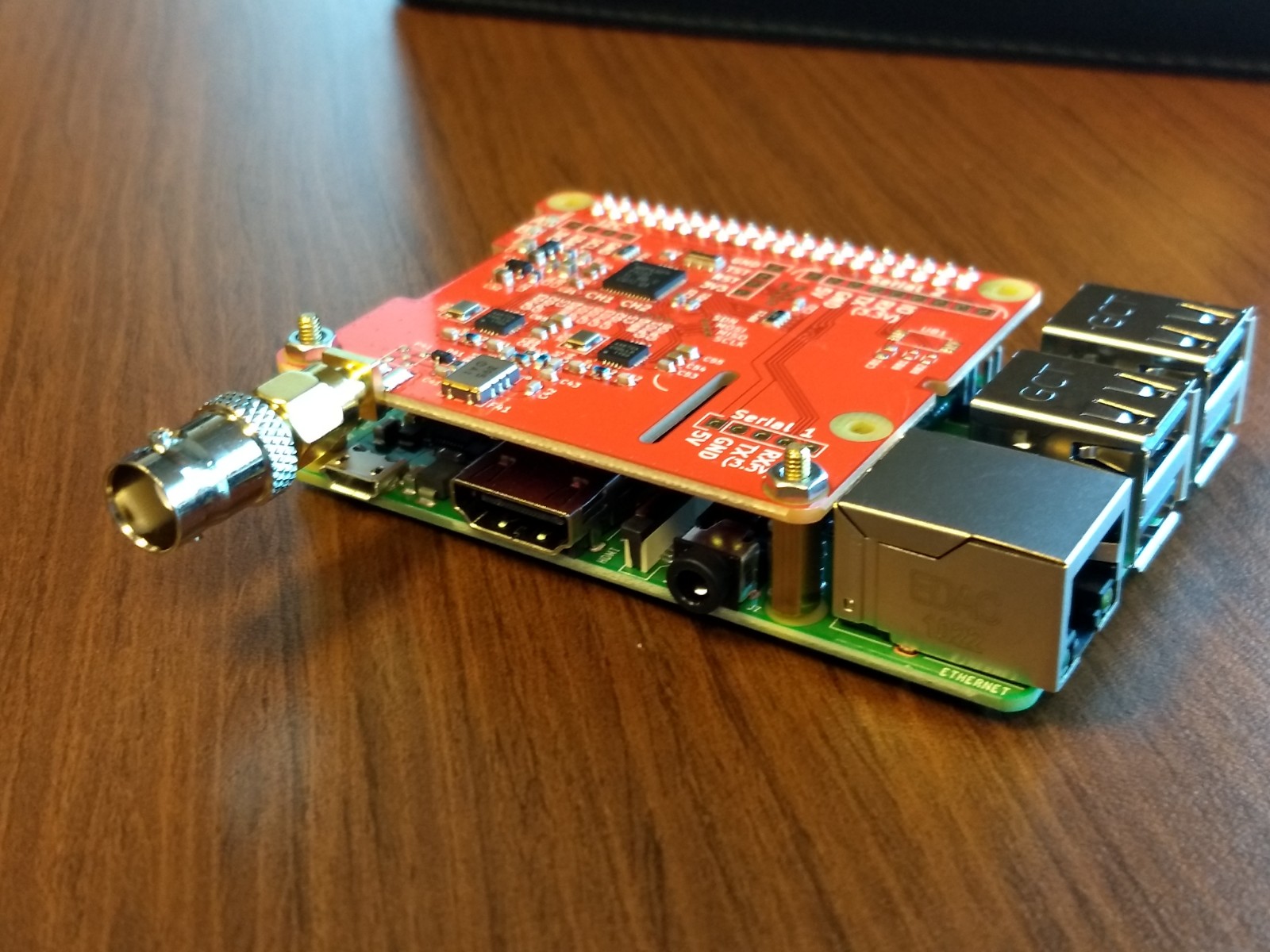
At this point, you can connect the antenna to the dAISy HAT and restart the Raspberry Pi.
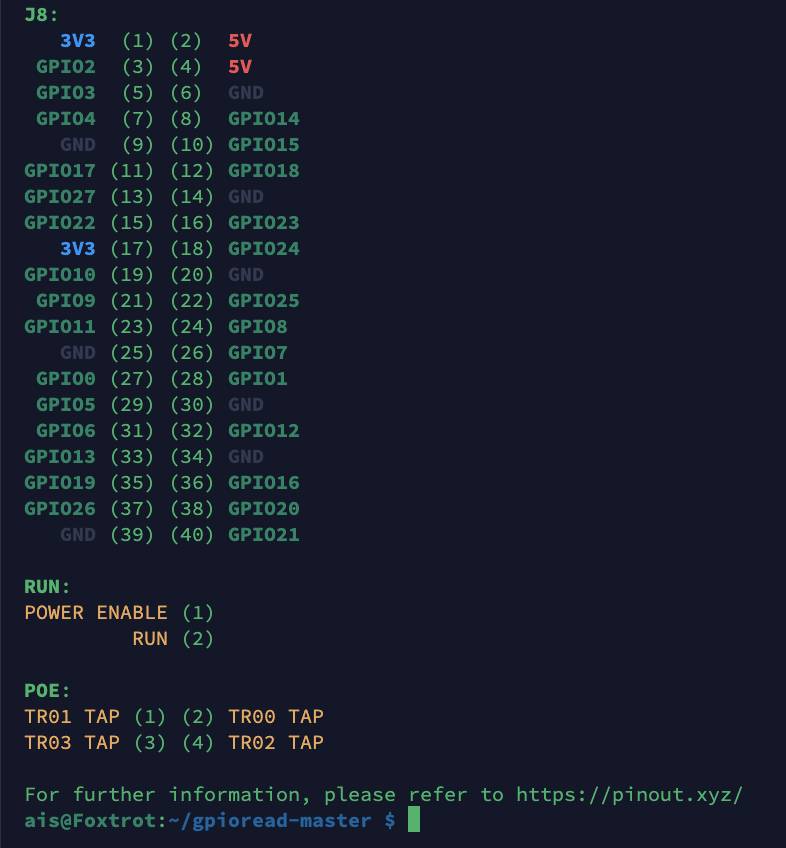
This step is wholly optional but provides an interesting look at the general purpose input/output (GPIO) ports on the Raspberry Pi. While interesting, this step is not essential to the operation of the dAISy HAT, the Raspberry Pi, or OpenCPN.
In a terminal window on the Raspberry Pi, or from your own computer using SSH, use the pinout command to see a visual display of the motherboard's GPIO ports' status:

OpenCPN
OpenCPN is free, open source chartplotter and maritime GPS navigation software that can run on Android, Debian, Fedora, Flatpak, Linux, macOS, Raspberry Pi, Ubuntu, and Windows systems — it seems about every platform except iPadOS and iOS. While designed to be used while underway or for planning purposes, it also provides a useful tool for AIS projects.
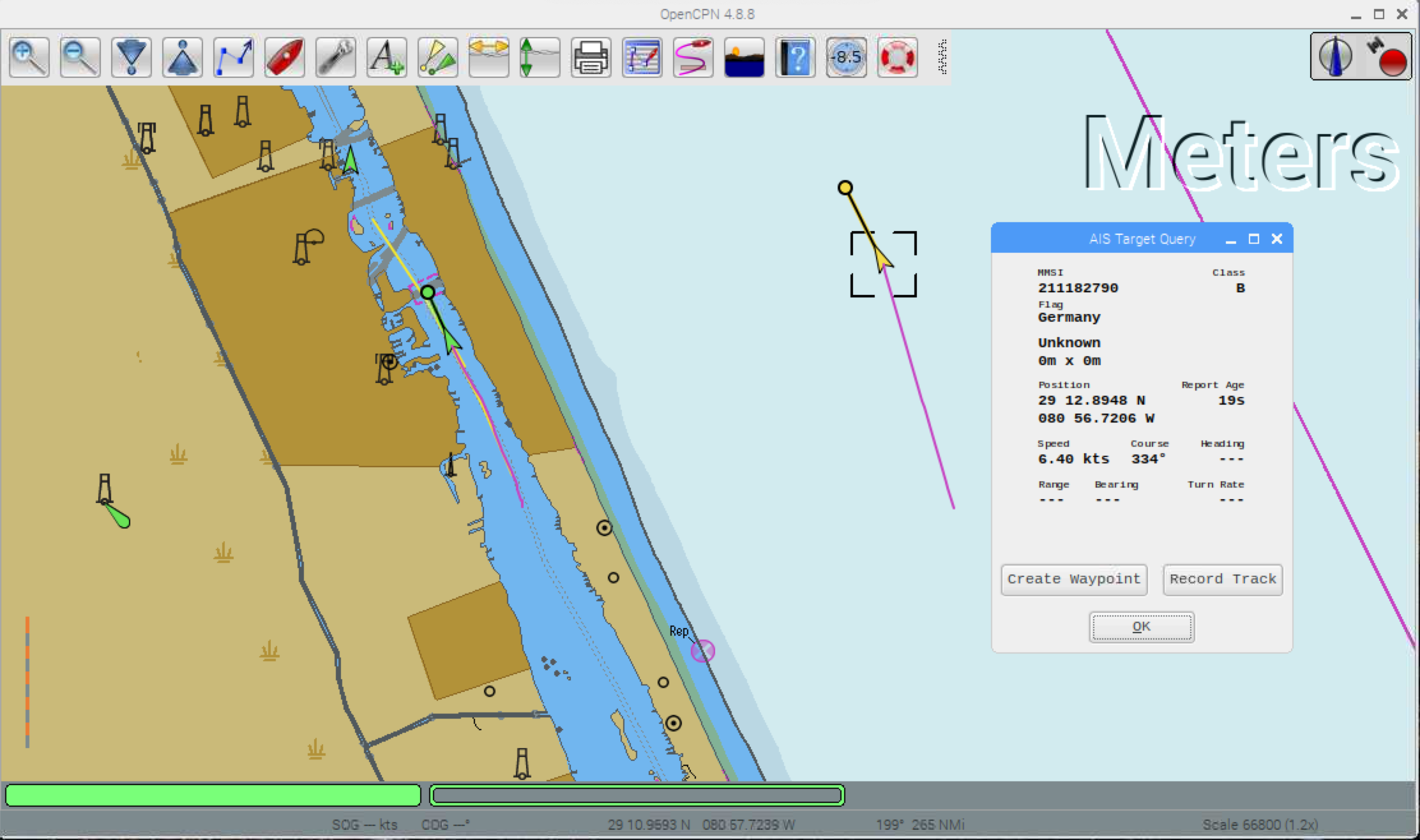
To learn more about OpenCPN, visit OpenCPN.org, the source of all things OpenCPN! In particular, there are a wide variety of manuals to be found at that site, including:
The steps outlined below work on Raspberry Pi OS running on Debian version 13 (aka trixie). If you are not sure what version of Raspbian or other Linux distro you are using, use the following command:
cat /etc/os-release
To install OpenCPN, open a terminal window and enter these commands:
     sudo apt-get update
     sudo apt-get install opencpn
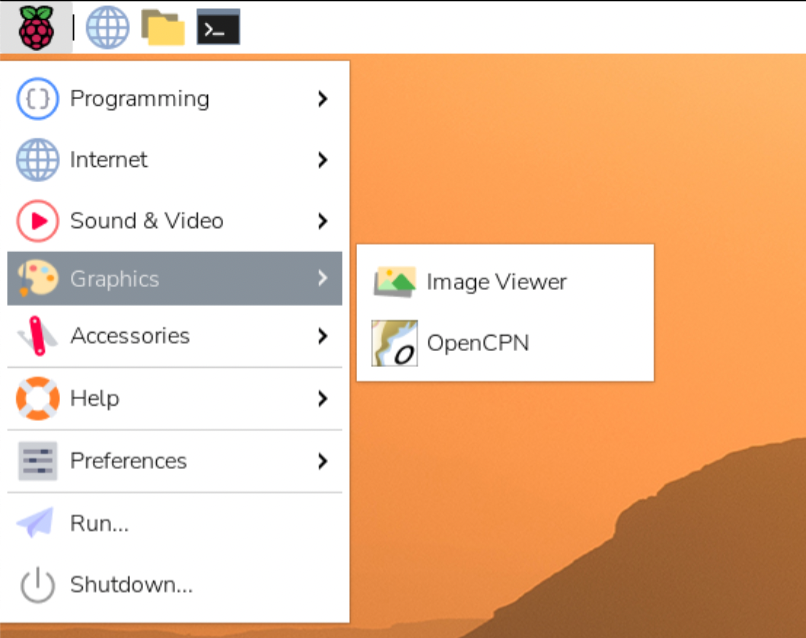
You should find OpenCPN under the Graphics sub-menu.
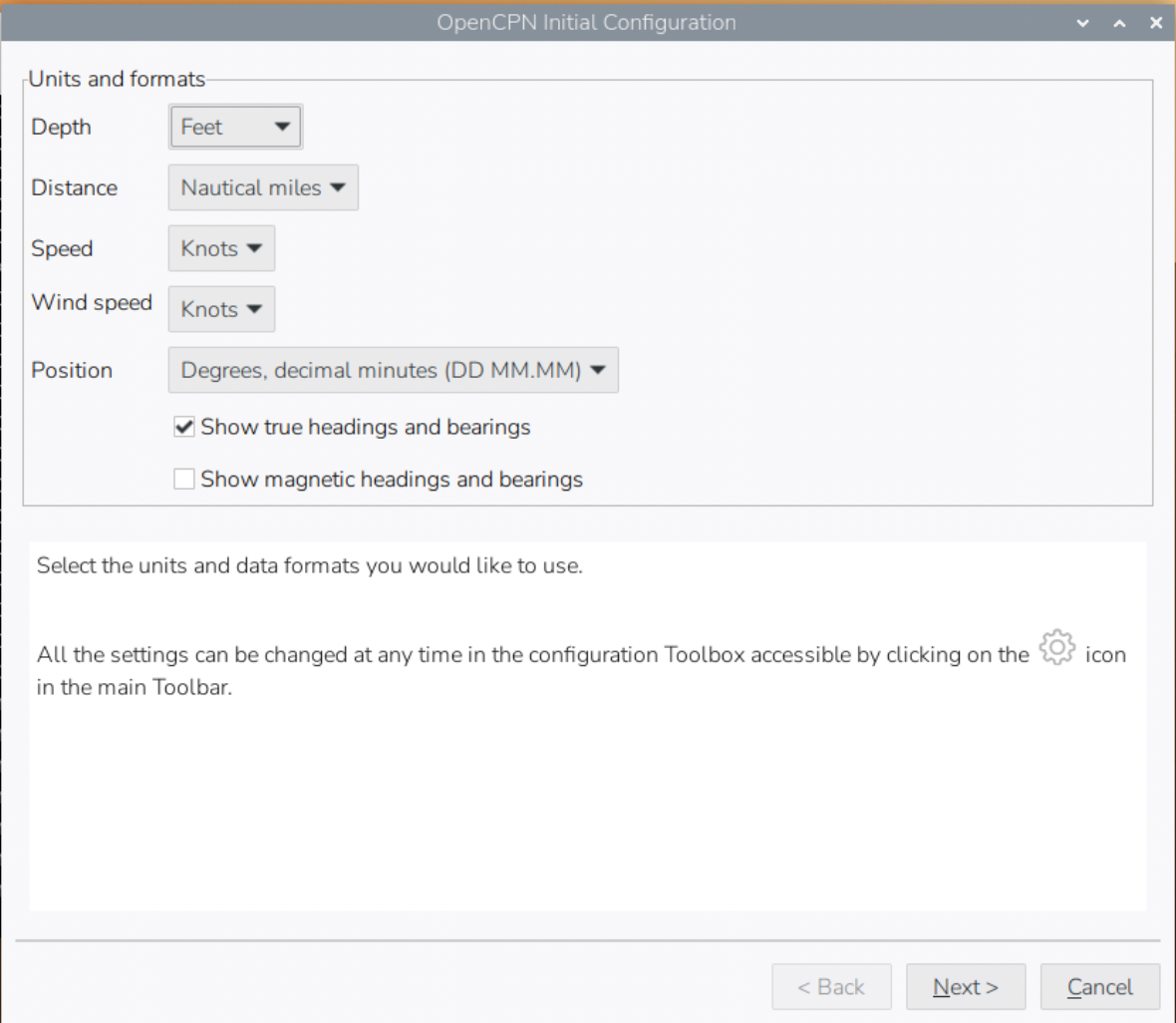
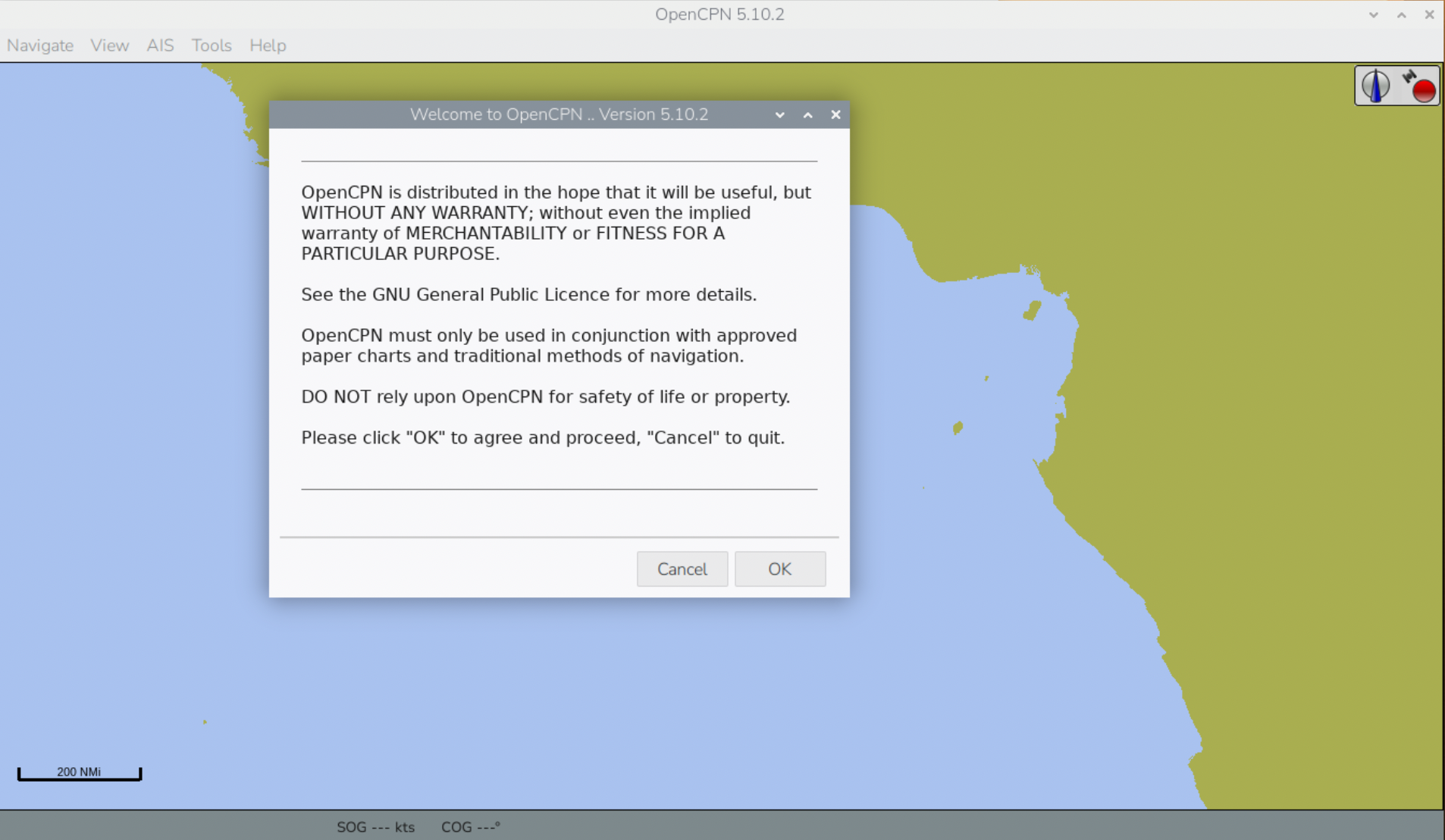
You might see a the following configuration screens the first time OpenCPN starts up. If so, click Next and OK, respectively, to continue.
Configure OpenCPN
The first configuration item, in almost all cases, will be to load some charts.


Next, configure your data source:
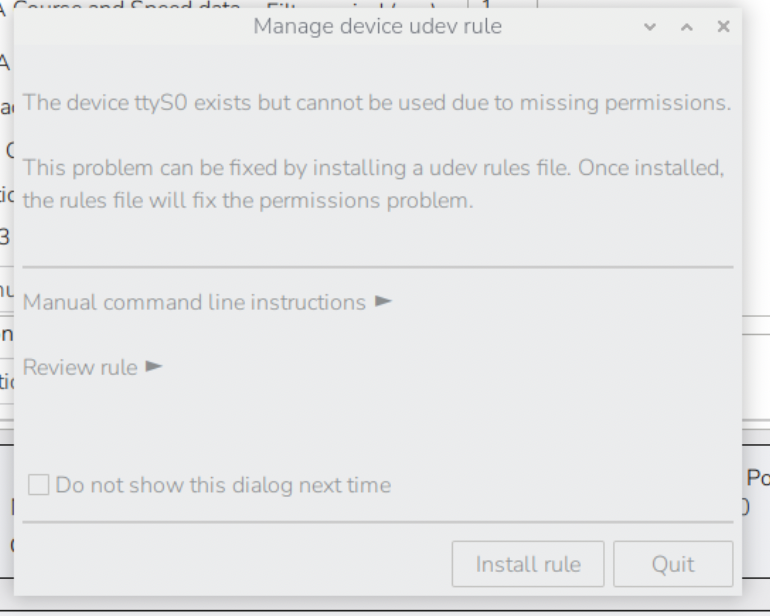
If you get an error message about a missing rule when setting up the serial port, click the Install rule button, then OK, and reboot the Raspberry Pi.
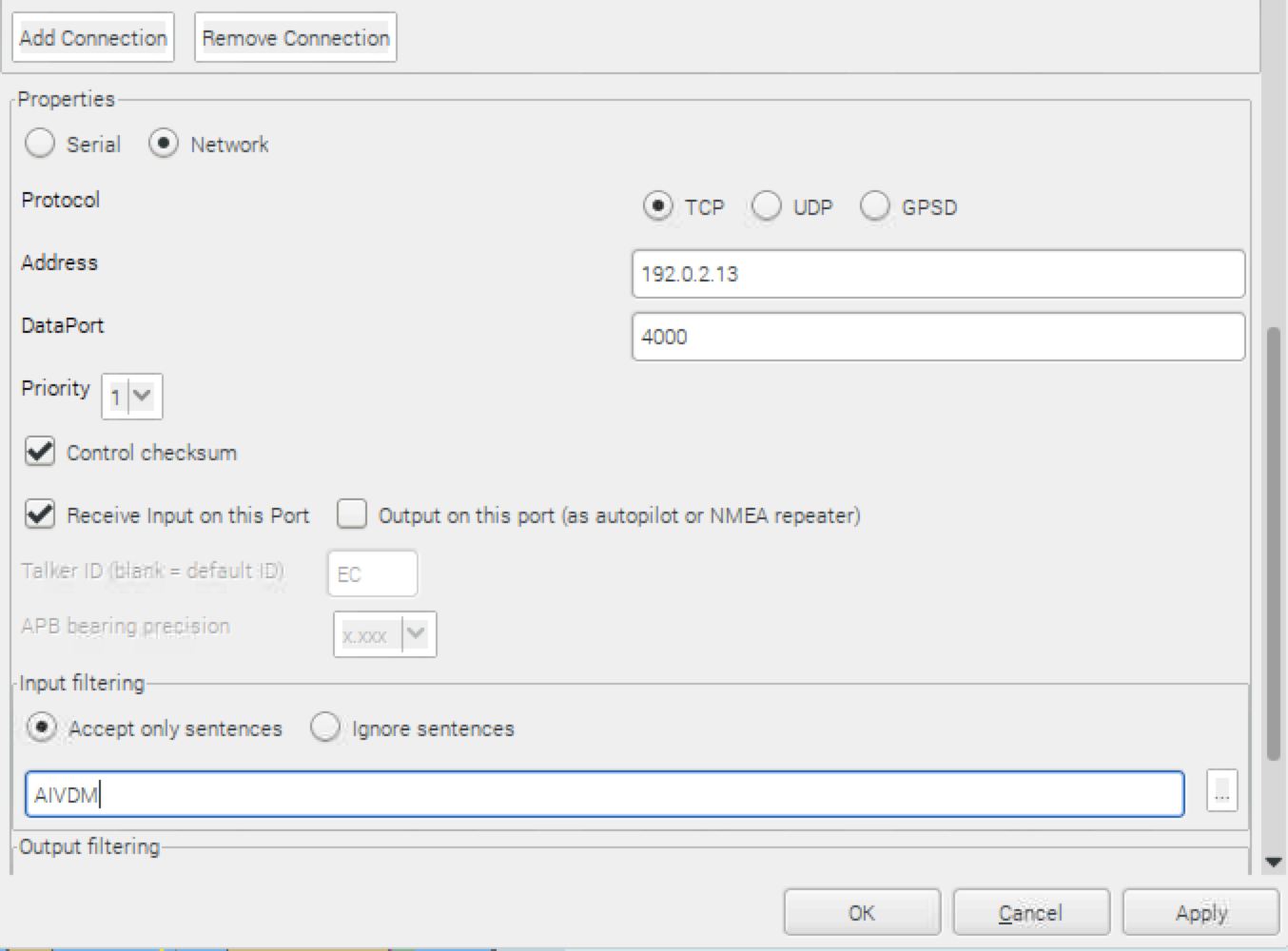
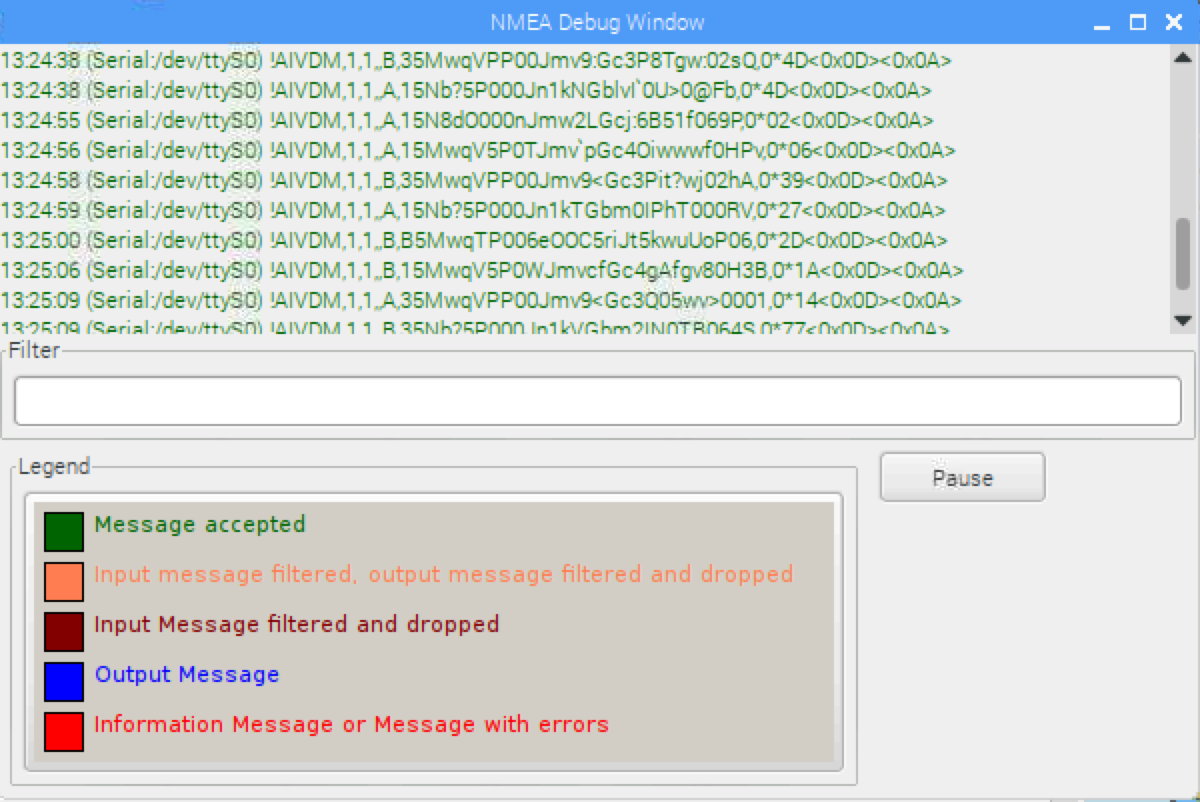
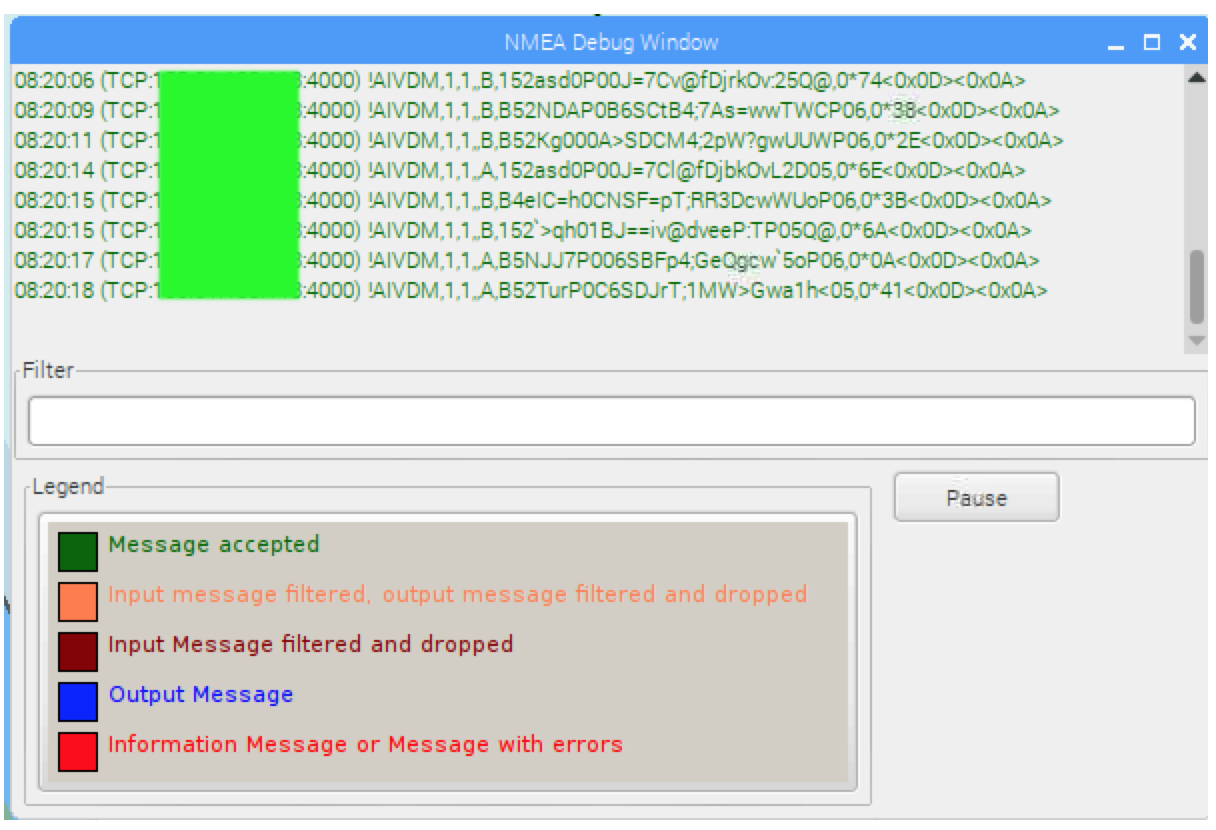
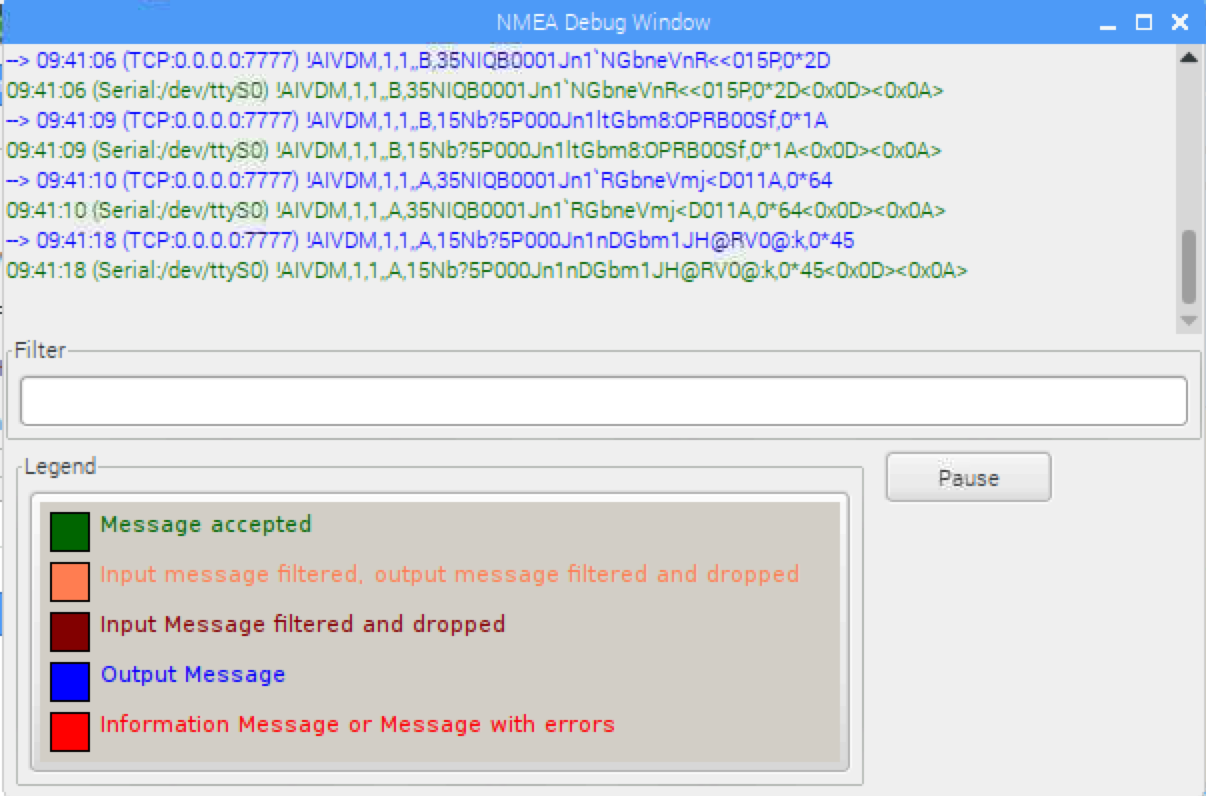
Under Connections, you can check the Show NMEA Debug Window box to see the actual NMEA/ITU sentences (screen shots below for the serial and network connections, respectively):
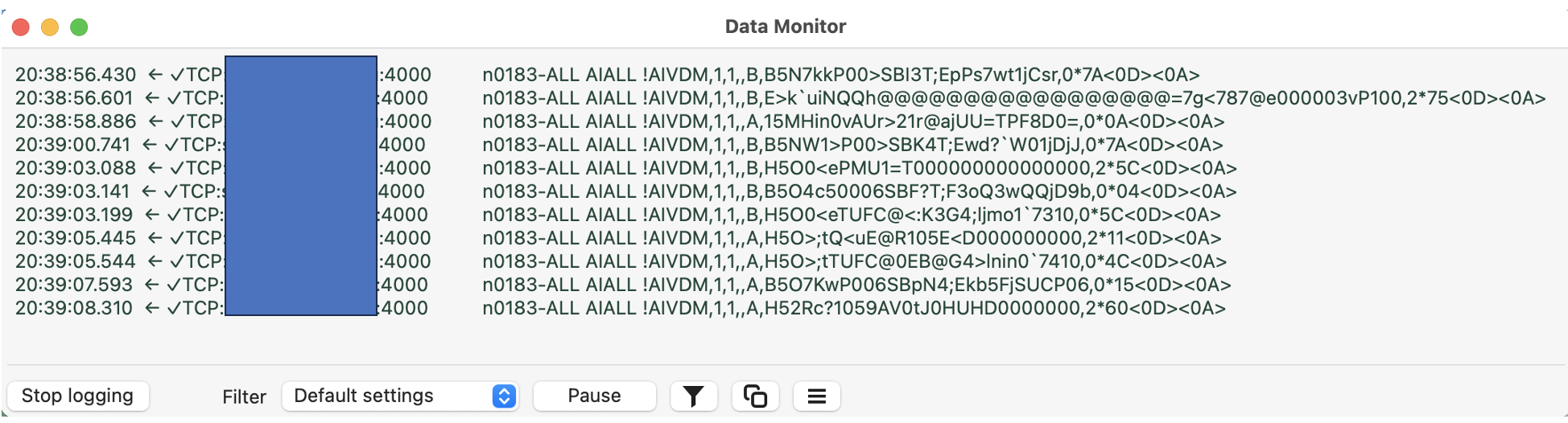
On newer version of OpenCPN, you can find the NMEA data by clicking on Tools, Data Monitor.
Working With Raw Data Sources
When using OpenCPN with a network data source, the raw data feed can be captured directly using the netcat (nc) or telnet command, in the form:
     nc SOURCE_IP_ADDRESS PORT
     telnet SOURCE_IP_ADDRESS PORT
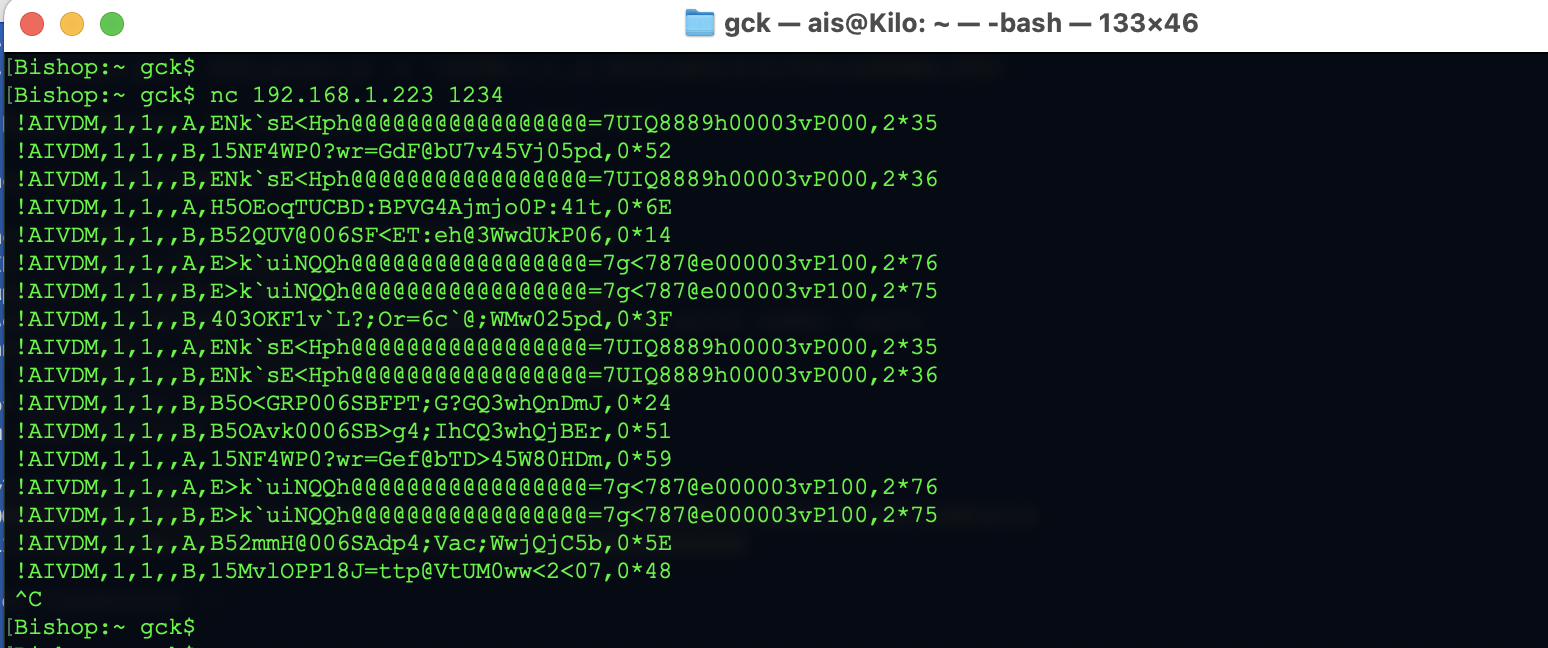
OpenCPN itself can also be used as a data server and create an outgoing data stream from its input. This is particularly useful if you are reading from a serial interface; OpenCPN can read from serial0, for example, and produce a TCP data stream. Setting this up is very straight-forward:
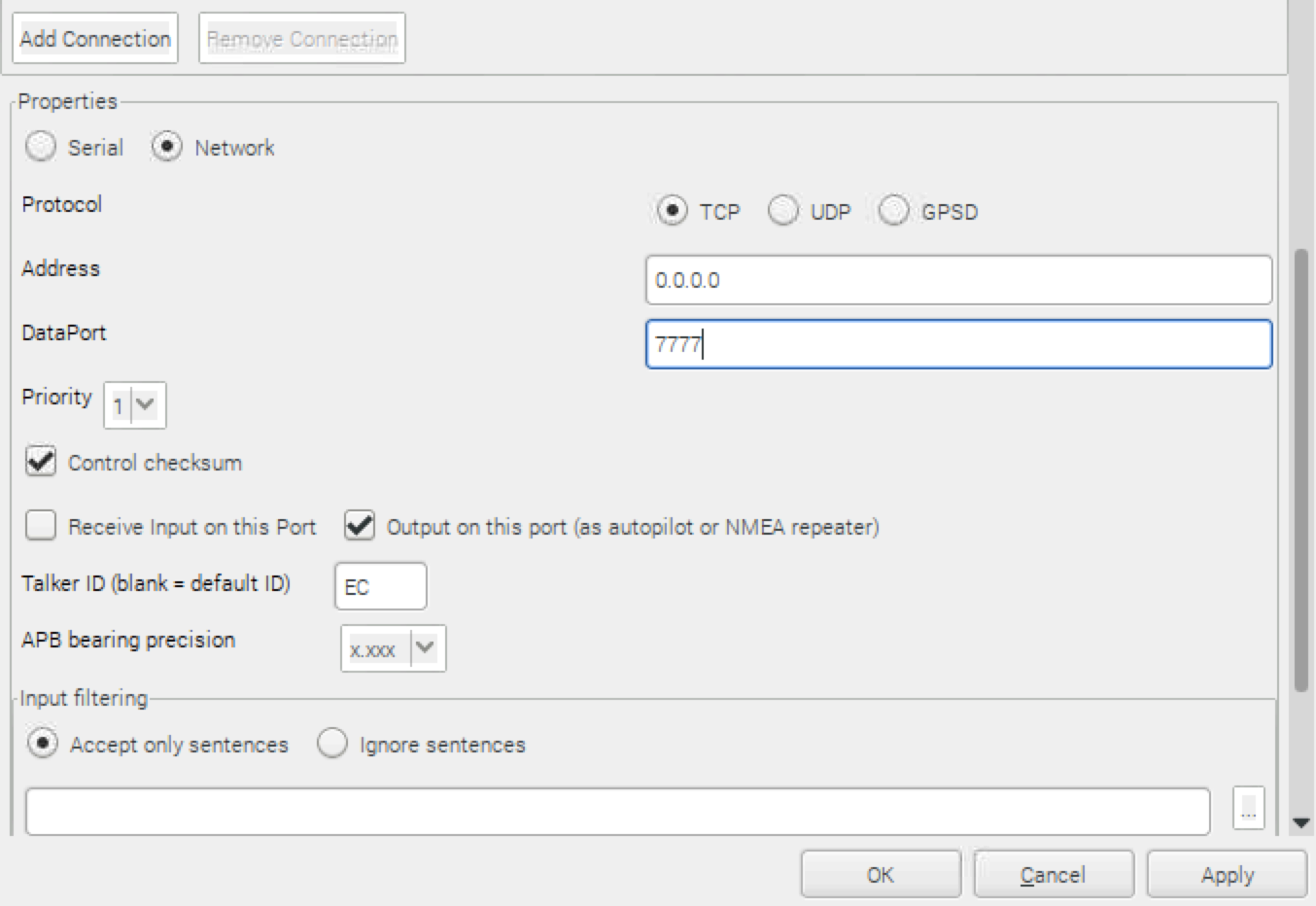
At this point, you have two open connections, and OpenCPN is accepting input from whatever source you had been using and sending output on your desired TCP port.

Read your raw data stream, as above, from a terminal or any other application using netcat or telnet.
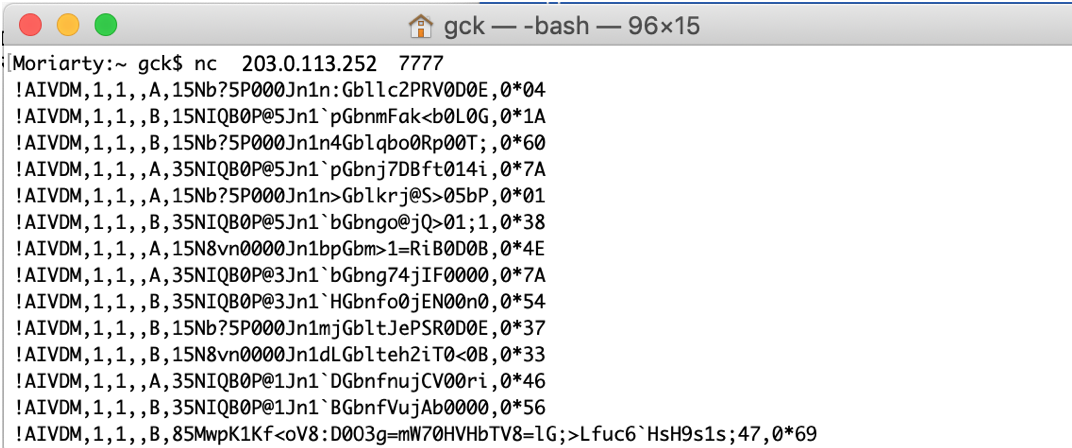
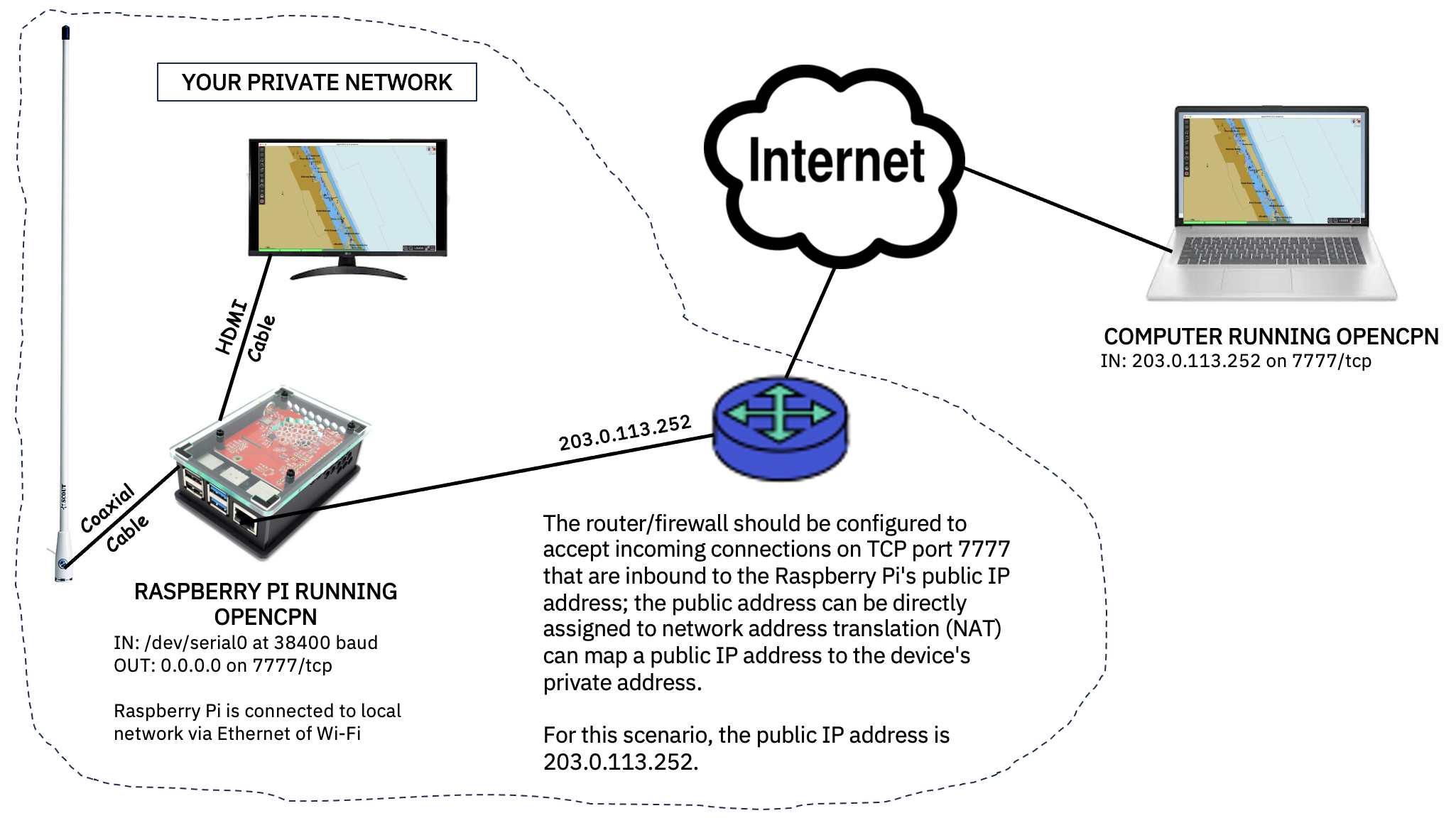
If you are setting up OpenCPN to make your raw data feed accessible on the Internet, you will need to give users a public IP address and ensure that your firewall rules allow external access to the output port that you use on that IP address. The drawing below shows one scenario setting up a local Raspberry Pi and allowing access to data with other systems on the Internet.
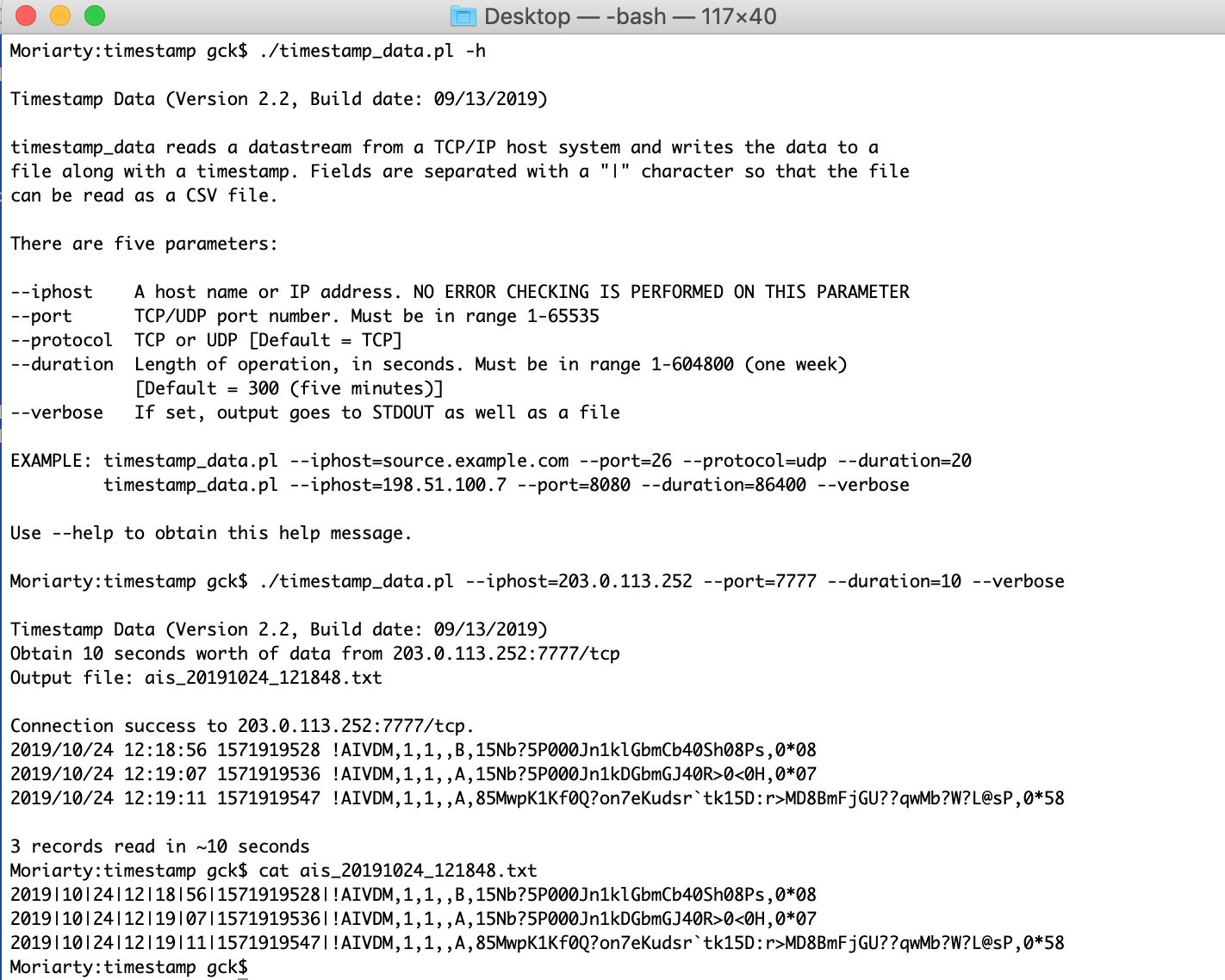
Finally... one of the problems that is immediately apparent from the raw output stream is that AIS lacks timestamp information. While OpenCPN displays a timestamp in the Debug Window, that is not part of the AIS message and, therefore, not a part of the raw data stream that can be captured. To remedy this, I wrote a small Perl program called timestamp_data that can connect to a TCP or UDP socket on a local or remote host, and read a data stream for a specified amount of time. Output is directed to a file complete with a human-readable and Unix epoch-formatted timestamp of when the data was received; fields in the file are delimited with a "pipe" (|) character. Users can, optionally, also see the data in real-time. The program can be found on my software page.
Sending Data to OpenCPN
If you have a file capture with raw AIS messages, it is possible to send that data to OpenCPN for display. First, you need to set up OpenCPN to listen on a TCP port rather than send. Just create a new OpenCPN connection on the port of your choice to address 0.0.0.0, as shown above, but check the box to "Receive input on this port."
There are a variety of methods with which to send the data to OpenCPN at this point. From a command line on the computer running OpenCPN, you could transmit the entire file via netcat:
cat FILENAME | nc localhost PORTUsing the method above will work but all it does is dump the entire AIS message stream to OpenCPN at one time so you just see the last sentence transmitted by each vessel. If you want to slow things down a little, add a delay between the display of each line in the data file using some shell scripting:
     cat FILENAME | { while read line; do sleep 2; echo "$line" | nc localhost PORT ; done; }
     cat FILENAME | { while read line; do sleep 1; echo "$line" > /dev/tcp/localhost/PORT ; done; }
Again, the method above works but it puts in a fixed delay. The timestamp_data tool described above was specifically designed to add a timestamp to the captured data so that it could be replayed in OpenCPN in relative real-time using another one of my tools, play_ais. This program only needs a character-delimited file where each record has a timestamp (in seconds) and valid AIS sentence; a short video about using this approach can be found on my Web page (NOTE: The program was called replay at the time that I made the video).
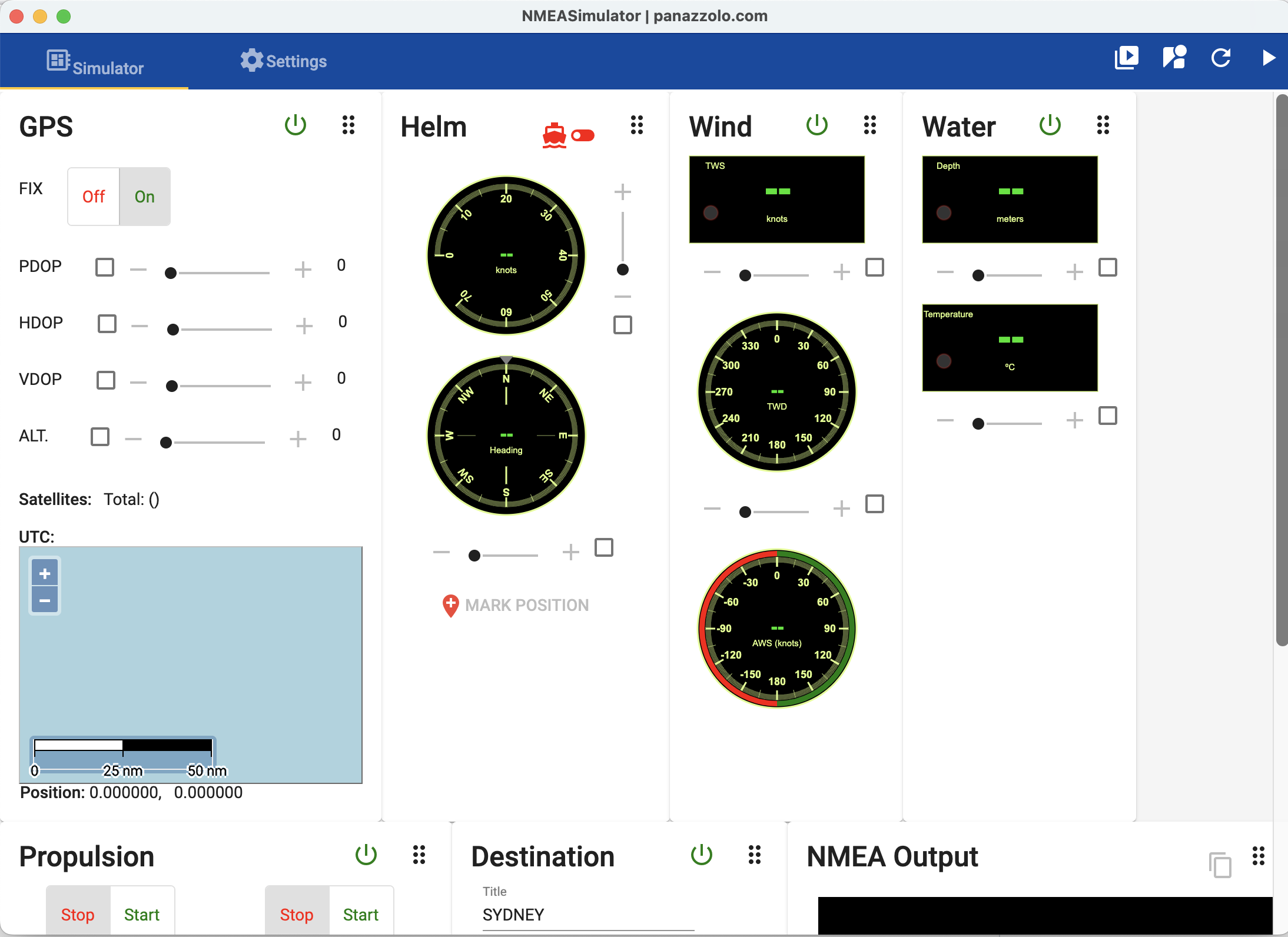
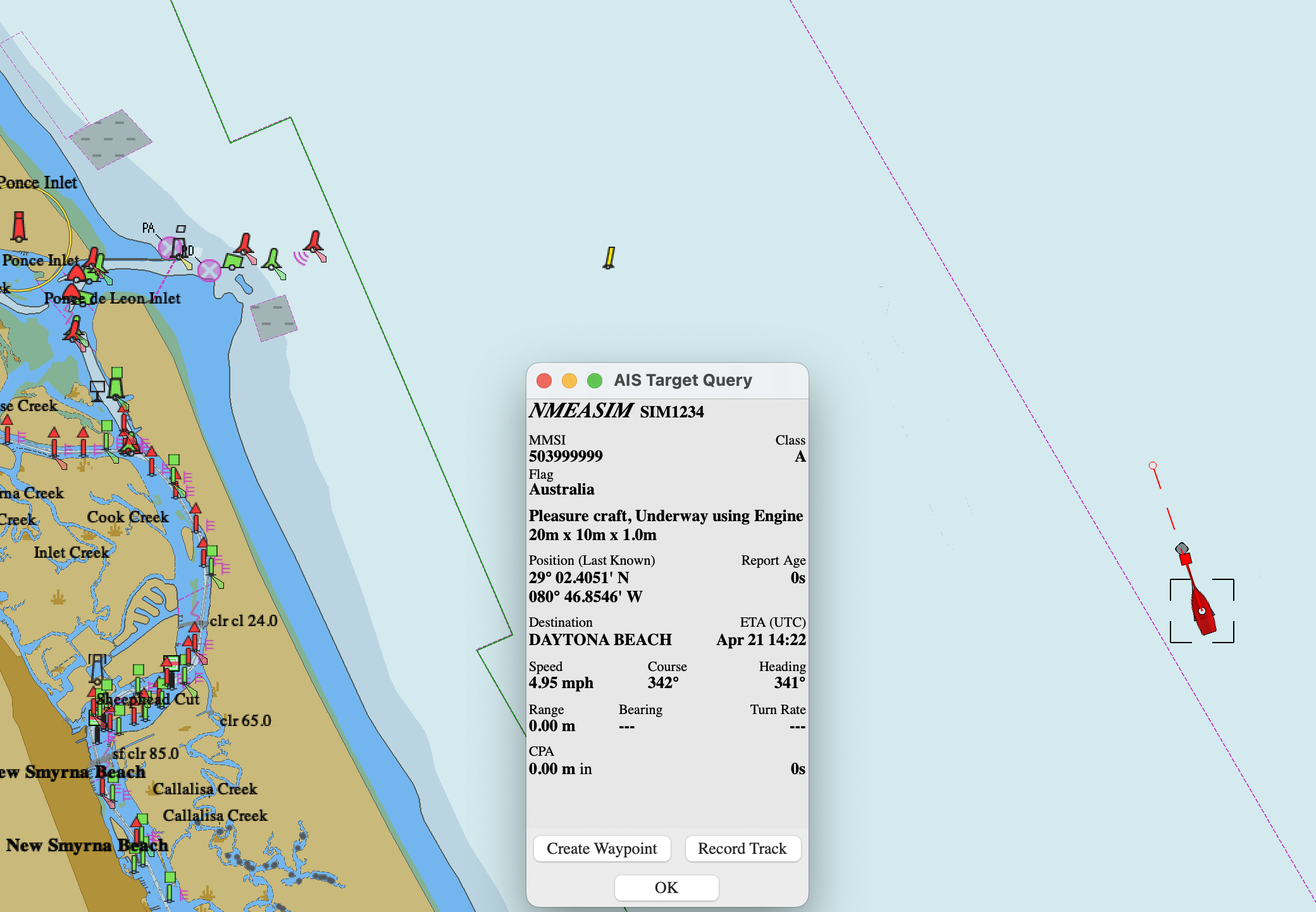
Another tool that is quite useful for AIS research is panaaj's NMEASimulator, an easy-to-use NMEA sentence generator for messages related to position, speed, and heading, among other items. The program, which replaces the Chrome-only plug-in, runs on Linux, macOS, Raspberry Pi OS (armv7l), and Windows.
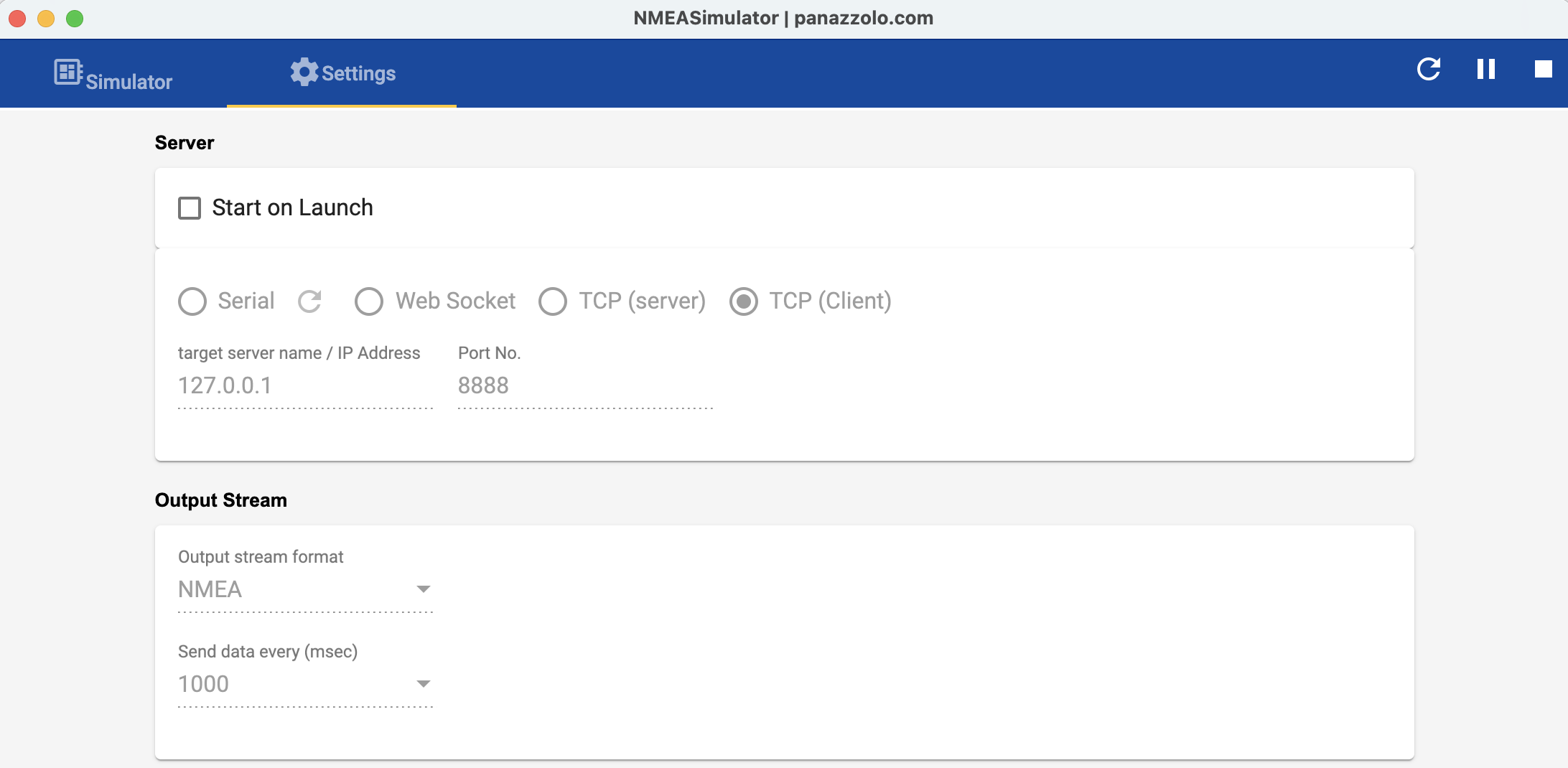
To send information to OpenCPN, you need the IP address and listening port. Enter this information into NMEASimulator by clicking on Options, Settings and selecting the Server tab. Be sure to click the Save button.
Start up OpenCPN and then click Start in NMEASimulator; simulated AIS data should now be displayed on OpenCPN.
Final Comments on Chart Plotting Software/Hardware
For my research purposes, I use OpenCPN to track both live and spoofed traffic. I do not actually transmit AIS messages over the air, but examine the effects using OpenCPN on the same system that generates the bogus AIS traffic and is receiving real AIS traffic. There is a very cool GitHub site that describes MAIANA™: The Open Source AIS Transponder if you are looking for an alternative to using a software-defined radio (SDR) approach.
On a related note, I co-presented, with Nick Haltmeyer (and Duncan Woodbury) of Liberas, a talk titled "Don’t Ship Your Bridges!" in the Maritime Security (MARSEC) track of the ICS Village at DEFCON 32 (08/10/2024). The talk described SDR transmission of AIS messages using HackRF. See also our GitHub repository.
Finally, take a look at OpenMarine's OpenPlotter, a Raspberry OS-based navigational tool kit that can be used on small and medium-length boats. Check out the MacArthur-HAT GitHub site describing an add-on board for Raspberry Pi running OpenPlotter.
Interpreting the Data
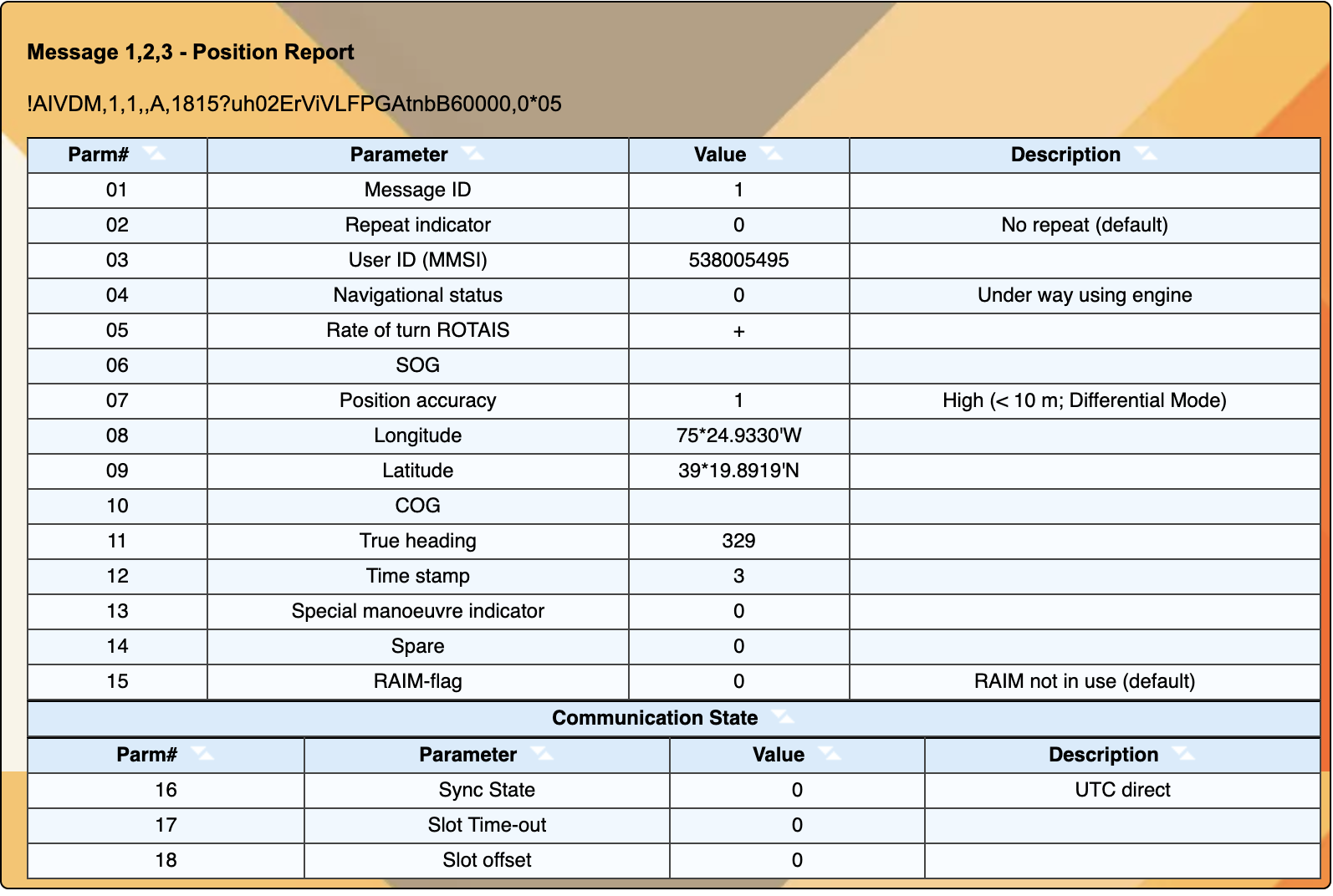
There are a variety of sources that will help you interpret the raw NMEA/ITU sentences that are transmitted over the air. The "AIVDM" sentences that AIS devices typically see are the NMEA 0183 AIS incoming transmissions (as opposed to AIVDO outgoing transmissions). Possibly the best online, open-source reference as to the details of the NMEA/ITU sentence content is Eric Raymond's AIVDM/AIVDO protocol decoding page.
There are also a number of AIS parsers online, where you can submit an NMEA sentence for interpretation, as shown below (from the Maritec Solutions online parser):
There are other AIS online parsers with a variety of capabilities, including:
A SMALL SIDENOTE: GCK's AIS Tools
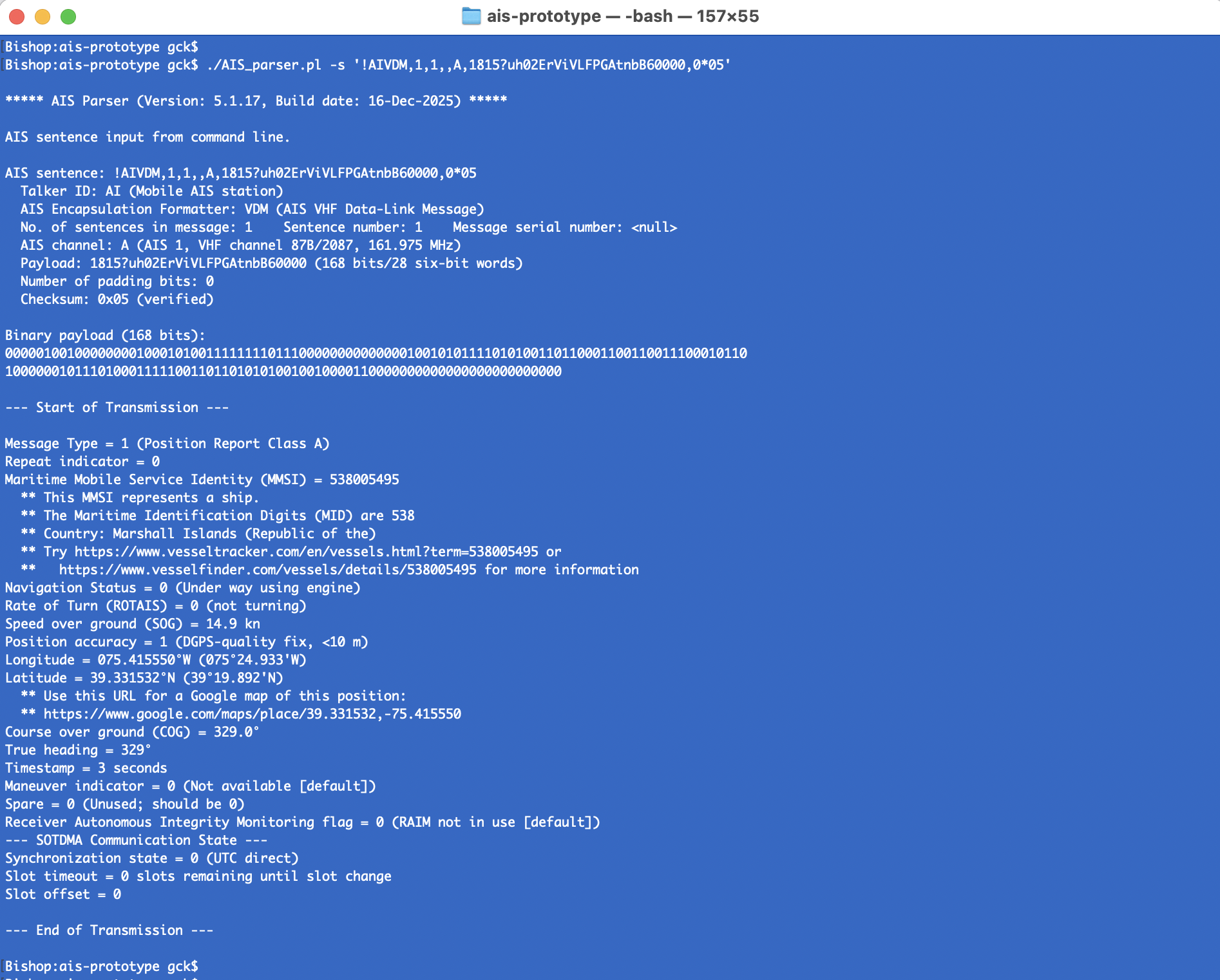
As mentioned earlier, my set of AIS tools (written in Perl) are available on my software page. These tools provide the ability to create AIS messages, and parse messages (as shown below), as well as capture AIS traffic in real time and replay AIS messages (as mentioned above).
To download my tools (or any other files) to the Raspberry Pi, go to my software page with the browser and download the desired ZIP file. To unzip the file, open a Terminal windows, navigate to the directory where the ZIP file was saved, and then use the unzip command to expand the file archive. A Perl interpreter is included in Raspberry Pi OS. Alternatively, you can use the wget command to download files.
Here is an example. Suppose you want to download the ais_tools_latest.zip file from my Web site and put it into a directory that you will create named AIS on the Raspberry Pi. You can do this with following commands:
     cd ~
     mkdir AIS
     cd AIS
     wget www.garykessler.net/software/ais_tools_latest.zip
     unzip ais_tools_latest.zip
If you are looking for real AIS data for research, testing, or curiosity, check out:
And, finally... if you are working with NMEA 2000 binary data, take a look at the CANboat project. Also, aisstream.io provides a websocket API for real-time AIS data acquisition.
COPYRIGHT NOTICE
All information on this page © 2019-, Gary C. Kessler. Permission to use the material here is extended to any of this page's visitors, as long as appropriate attribution is provided and the information is not altered in any way without express written permission of the author.